Thing List Map Widget
Overview
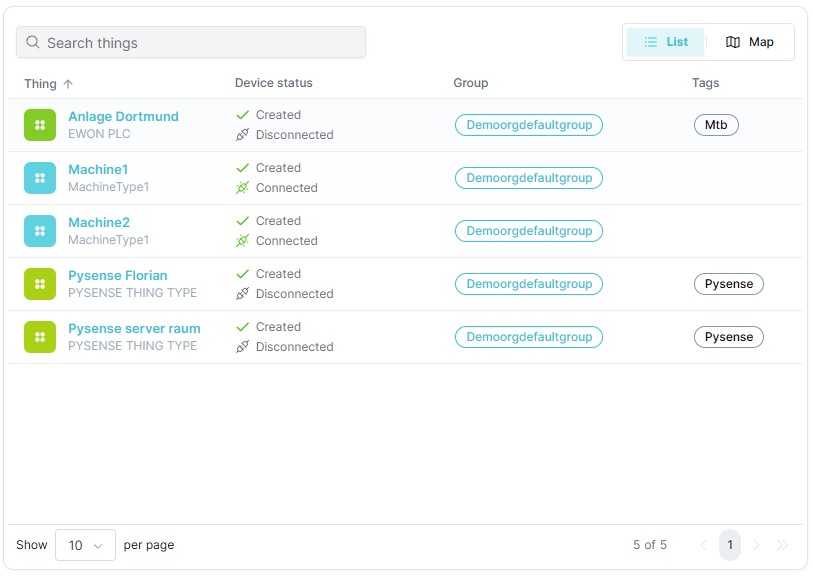
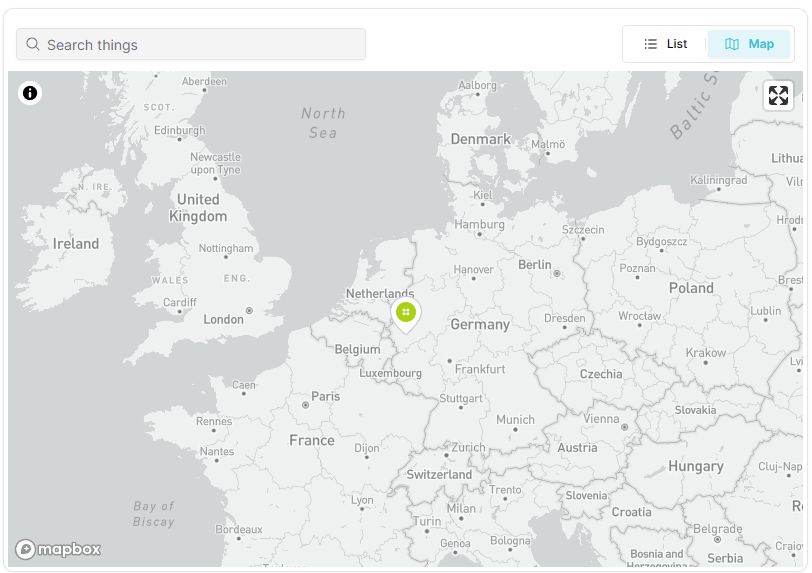
The Thing List Map widget provides a dual-view interface with a toggle between list and map views of your Things. Users can switch between a paginated table view showing Thing details and an interactive map view displaying Thing locations.
Use Cases
- Fleet Management - View and list vehicles simultaneously
- Asset Overview - Geographic and list view of assets
- Device Selection - Select Things from map or list
- Combined Monitoring - Monitor locations with detailed info
- Inventory Management - Track distributed inventory
Key Features
- Toggle between list and map views
- Search and filter Things in list view
- Paginated table with sortable columns
- Interactive map with Thing markers
- Real-time heartbeat status indicators
- Responsive design with adaptive controls
Configuration
The Thing List Map widget is a standalone widget that requires no specific configuration. It displays all Things from the current dashboard with toggleable views.
Basic Settings
| Field | Required | Description |
|---|---|---|
| None | N/A | No configuration required |
Display Options
| Field | Type | Description |
|---|---|---|
| Border color | String | Custom border color for the widget |
Best Practices
- View Selection - Choose the appropriate view (list or map) for your task
- Search Functionality - Use the search feature to quickly find specific Things
- Performance - Be mindful of the number of Things when using map view
- Responsive Design - On narrow screens, toggle buttons show icons only
- Pagination - Use pagination controls to navigate large Thing lists
View Modes
List View
The list view displays Things in a paginated table with the following features:
- Search Bar - Filter Things by name or attributes
- Sortable Columns - Click column headers to sort
- Pagination - Navigate through pages of Things
- Heartbeat Status - Real-time connection status indicators
- Row Actions - Click rows to view Thing details
Map View
The map view shows Thing locations on an interactive map:
- Location Markers - Each Thing appears as a marker
- Interactive Navigation - Pan and zoom the map
- Marker Popups - Click markers for Thing information
- Lazy Loading - Map loads only when first accessed for better performance
View Toggle
A toggle button group in the widget header allows switching between views:
- List Button - Switch to table view
- Map Button - Switch to map view
- Adaptive UI - Shows icons only on narrow screens (< 550px)
What's Next?
- Map Widget - For map-only view