ThingType
Overview
In the world of Industrial IoT, it's not enough to just connect machines - you need to understand them, manage them and extract value from their data. That’s where ThingTypes come into play.
A ThingType is the digital blueprint - the structural and semantic definition - of a class of physical devices in your IoTBreeze environment. Think of it as the Digital Twin definition: it bridges the gap between your real-world equipment (like pumps, meters, or sensors) and their digital representations in IoTBreeze. Every "thing" (device) you onboard is instantiated from a ThingType, inheriting its defined measures, properties and behavioral metadata.
This approach ensures consistency, reusability and clear separation of concerns across your digital infrastructure. Whether you're managing hundreds of similar devices or building a complex automation pipeline, ThingTypes give you the foundation for scalable and insightful digital operations.
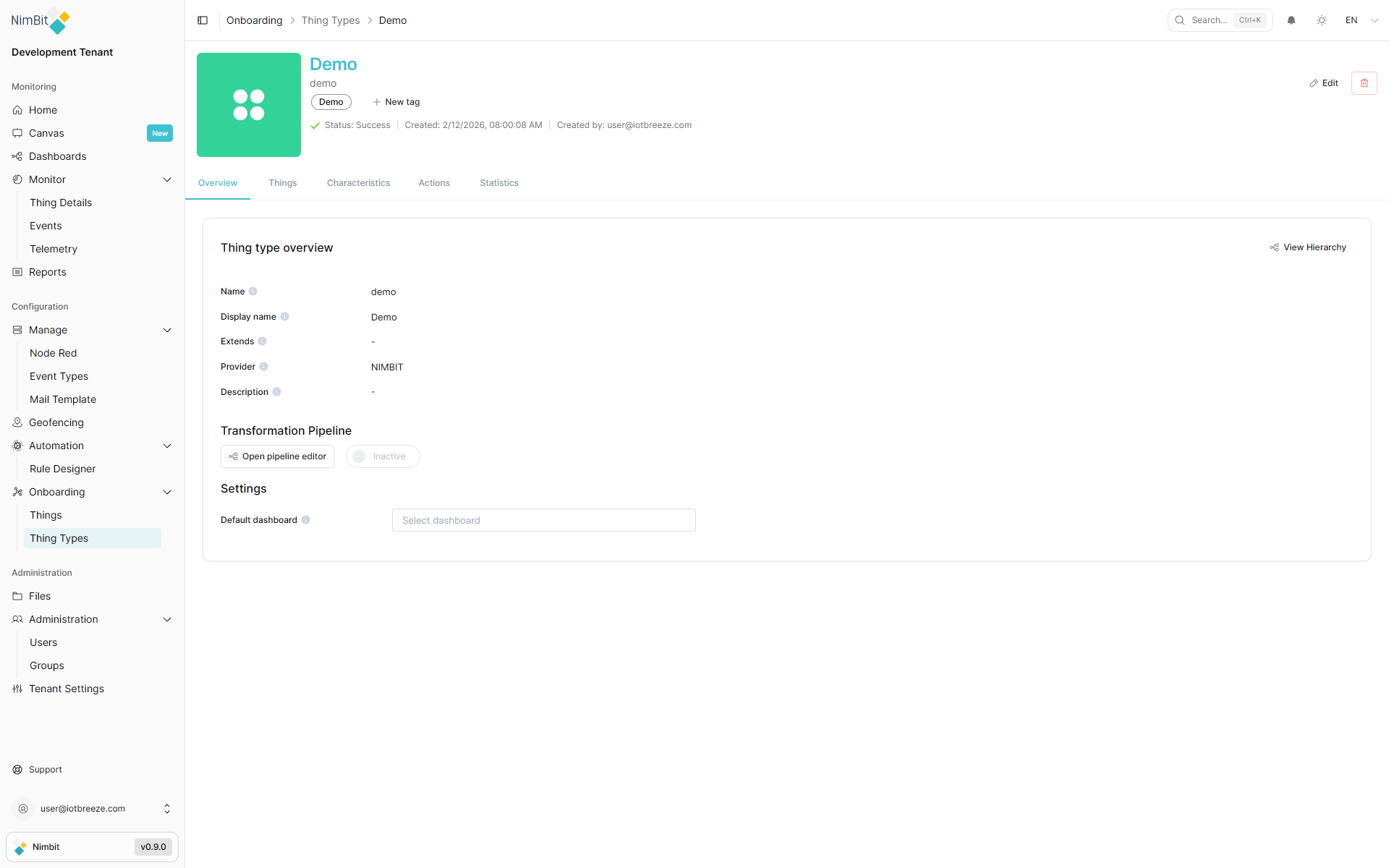
Create a ThingType
Now that you know what ThingTypes are, let's take a look at how you can define one in IoTBreeze. This isn’t just about filling out a form - it's where you shape what kind of data your devices will collect and how they behave in your system.
Navigating to Thing Types
Head over to the sidebar and select Onboarding → Thing Types.
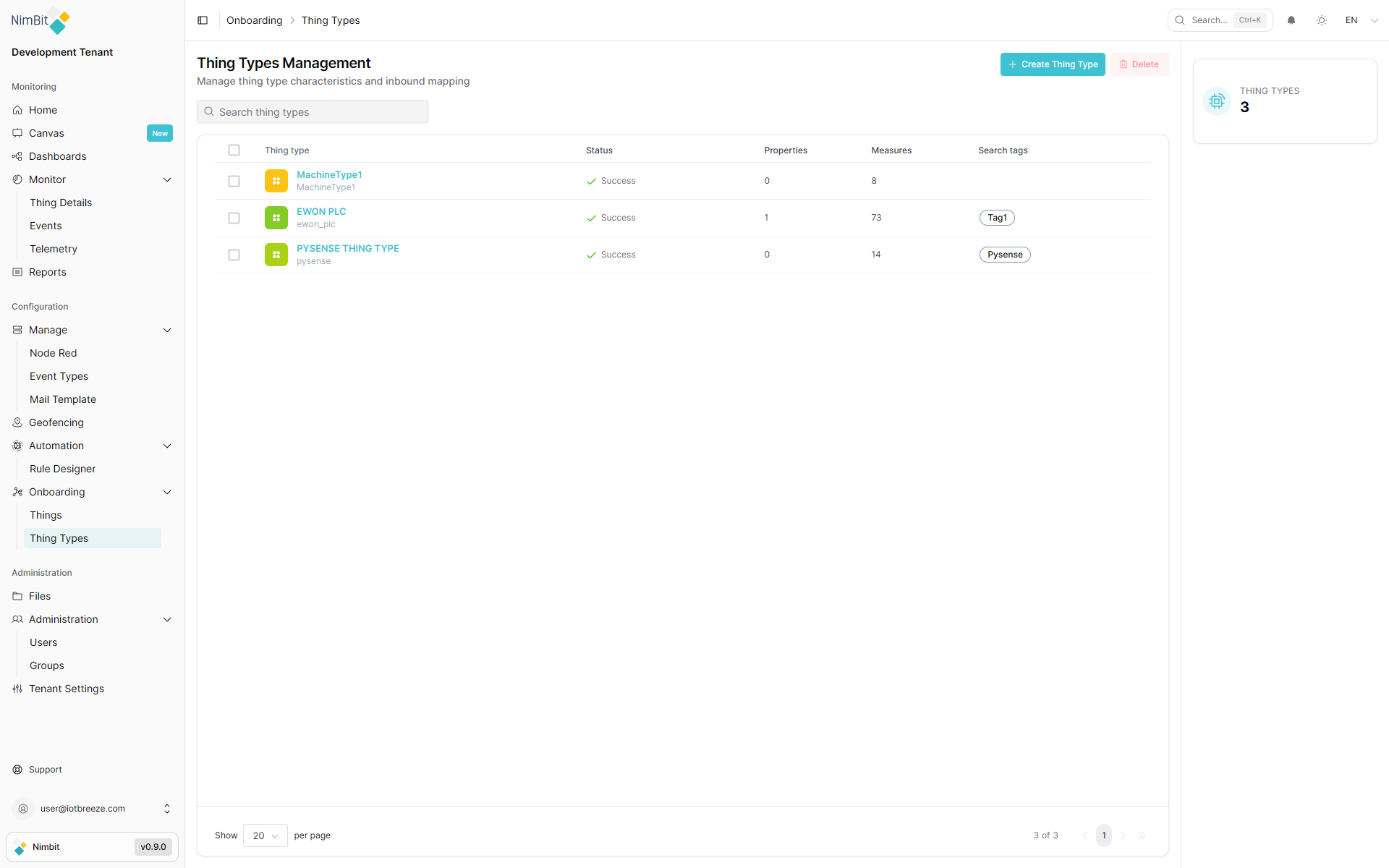
Click the "Create Thing Type" button in the top-right corner to open the ThingType form.
Thing Type form
This is where we define the basic values your ThingType.
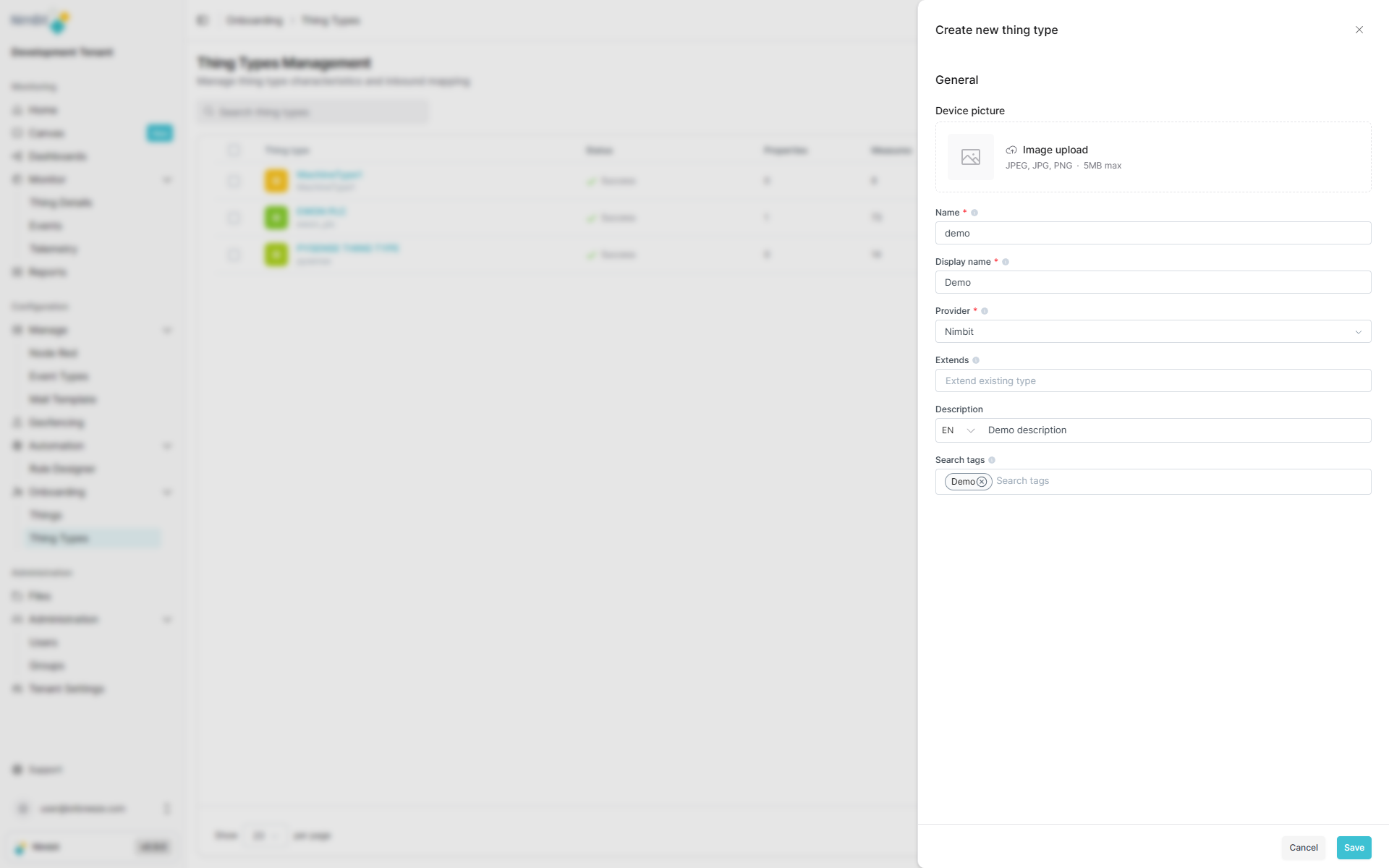
| Field | Required | Description |
|---|---|---|
| Name | ✅ Yes | A unique system identifier (no spaces, no special characters except underscore, do not start with a number). |
| Display Name | ✅ Yes | A readable label shown throughout the UI. |
| Provider | ✅ Yes | Default is Nimbit. Depending on your tenant's configuration you might have additional providers to choose from. |
| Extends | ❌ No | Inherit structure and capabilities from another ThingType. |
| Description | ❌ No | Additional context for this ThingType. |
| Search Tags | ❌ No | Keywords to support searching and filtering. |
Once you're done, hit "Save" in the bottom-right corner.
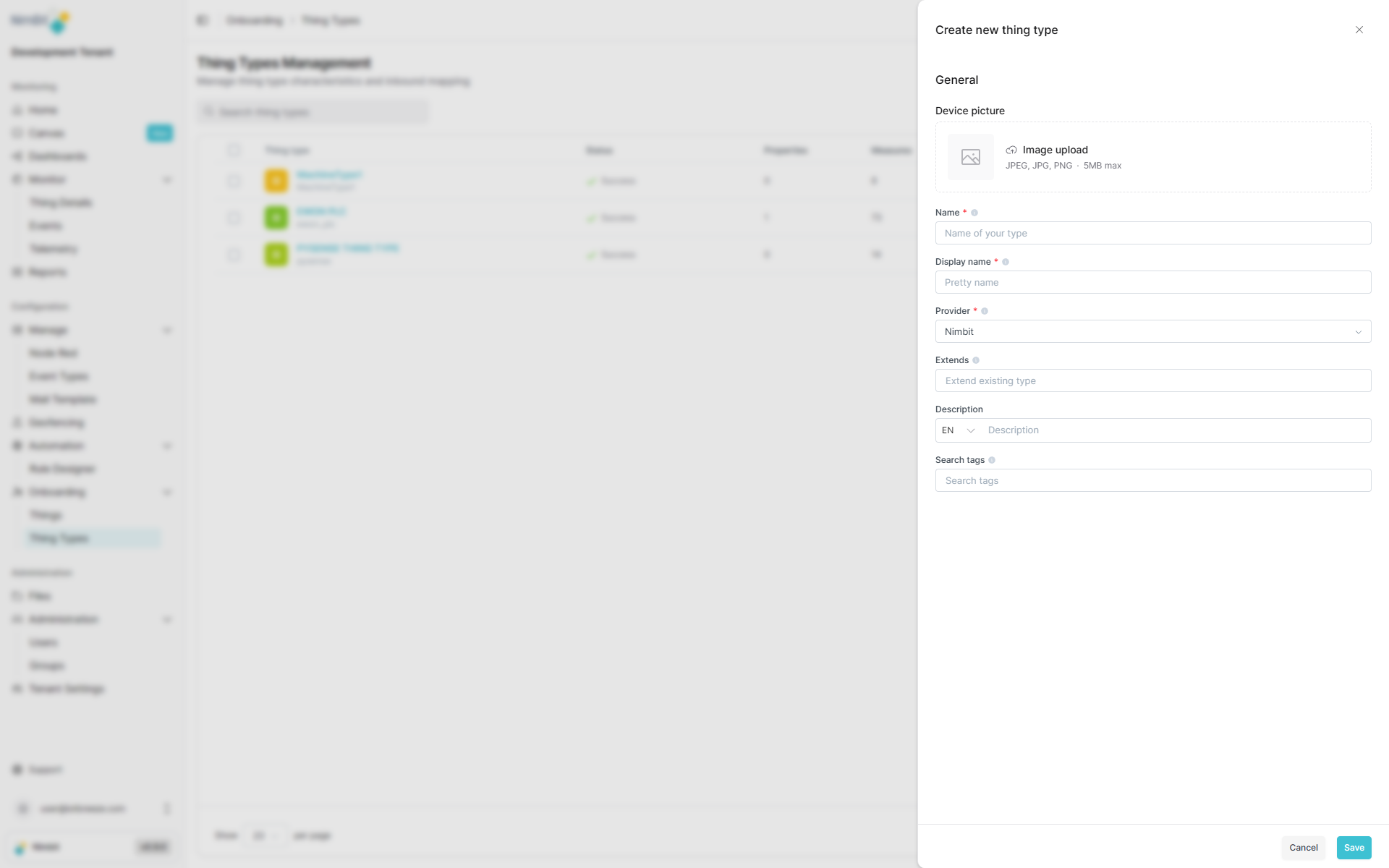
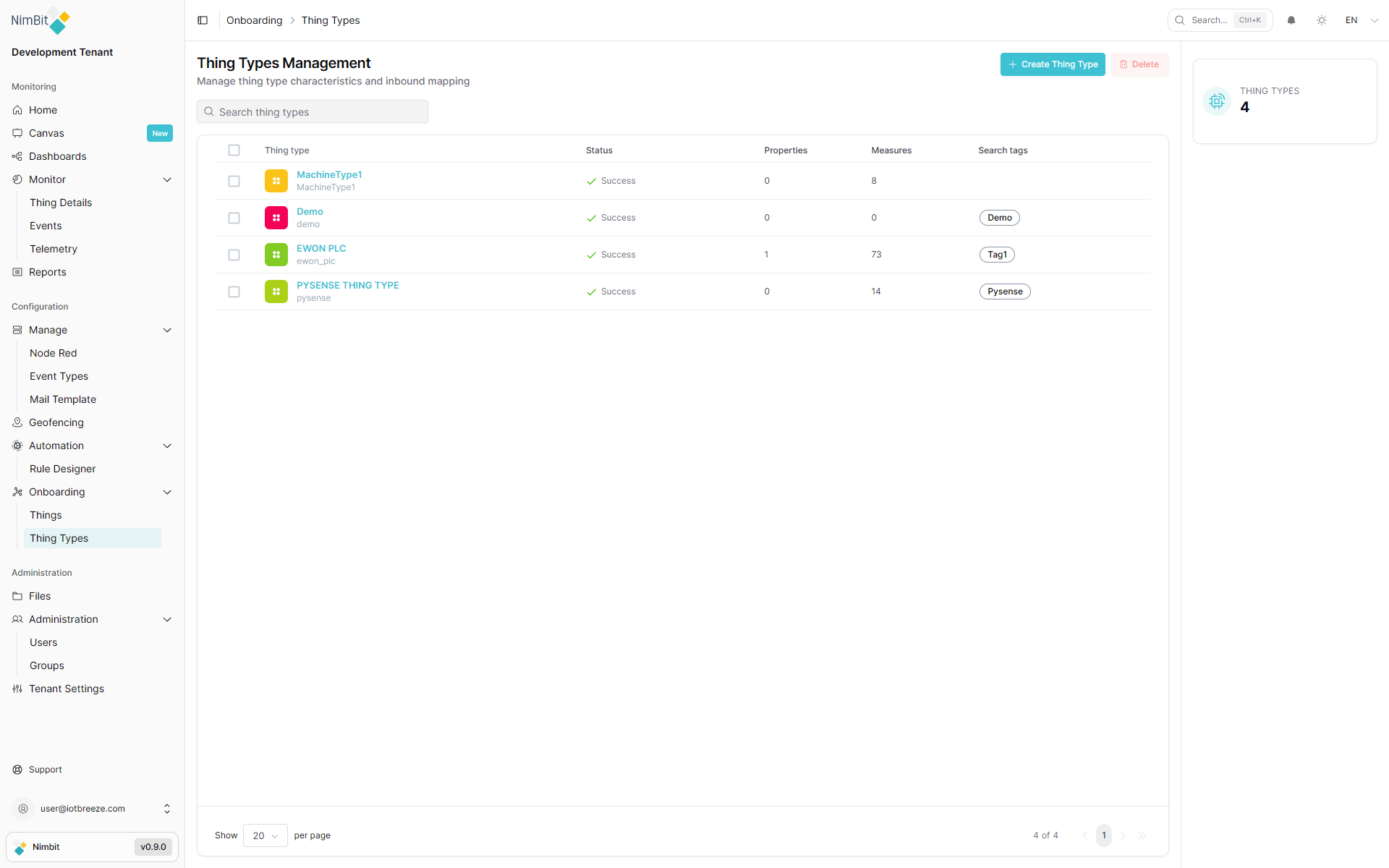
Your newly created ThingType will now appear in the list:
Measures & Properties
Add Measures to Track Live Data
Measures define the dynamic data points your device can send - typically sensor values or readings. Each measure has a type and constraints that reflect how it's processed in IoTBreeze.
Make sure the data types of your measures match the actual values sent by the devices. Incorrect types may lead to the data being unusable in dashboards or result in other unwanted behavior.
IoTBreeze supports automatic measure definition through ThingType Evolution. When a device sends data containing measures that aren't yet defined in the system, the Data Ingestion Pipeline (DIP) can automatically create these measures for you. This allows for flexible onboarding where devices can define their own data structure as they send information, reducing manual configuration overhead.
To get started:
-
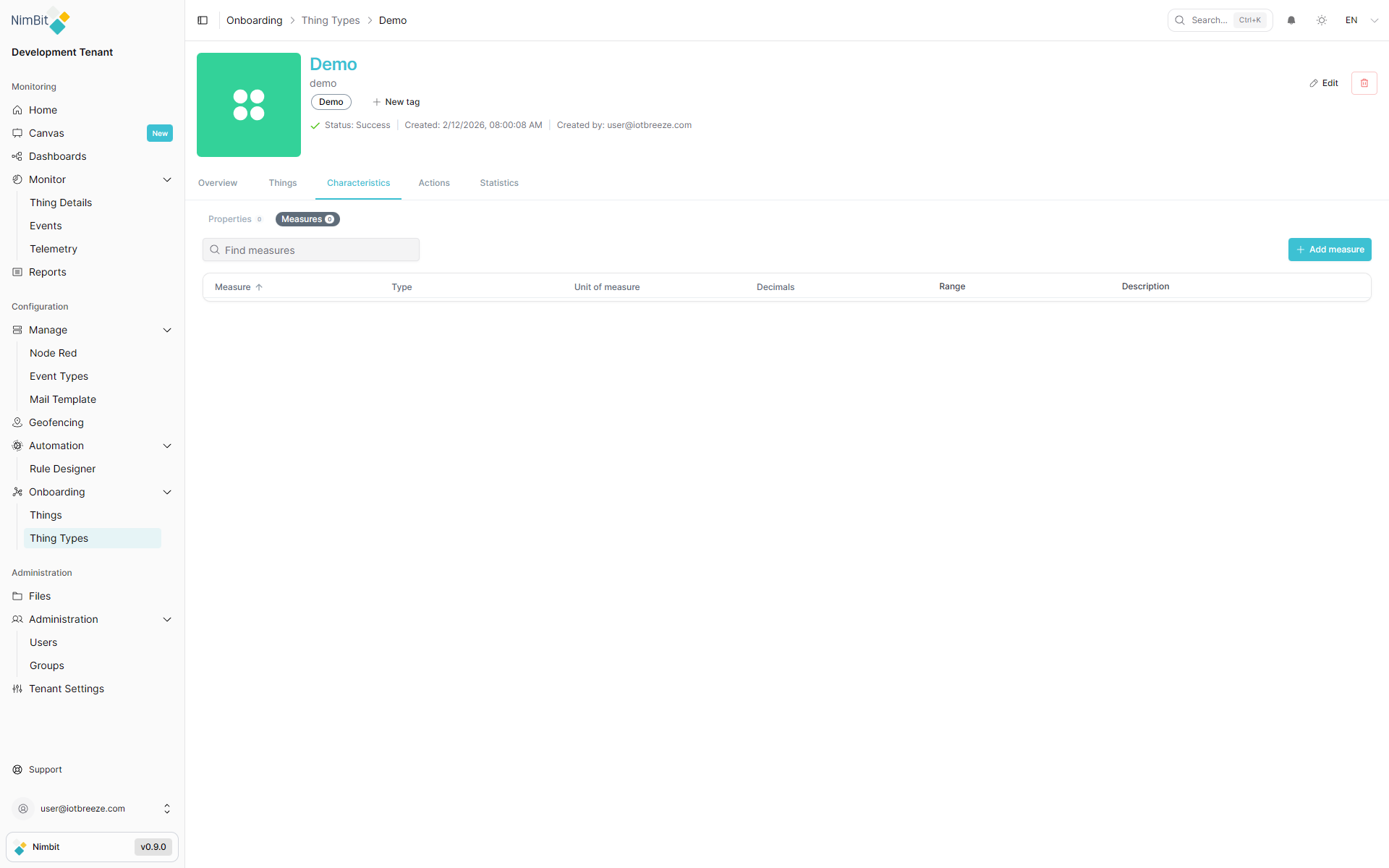
Open the ThingType and go to the Measures tab.
-
If none exist yet, you’ll see:
-
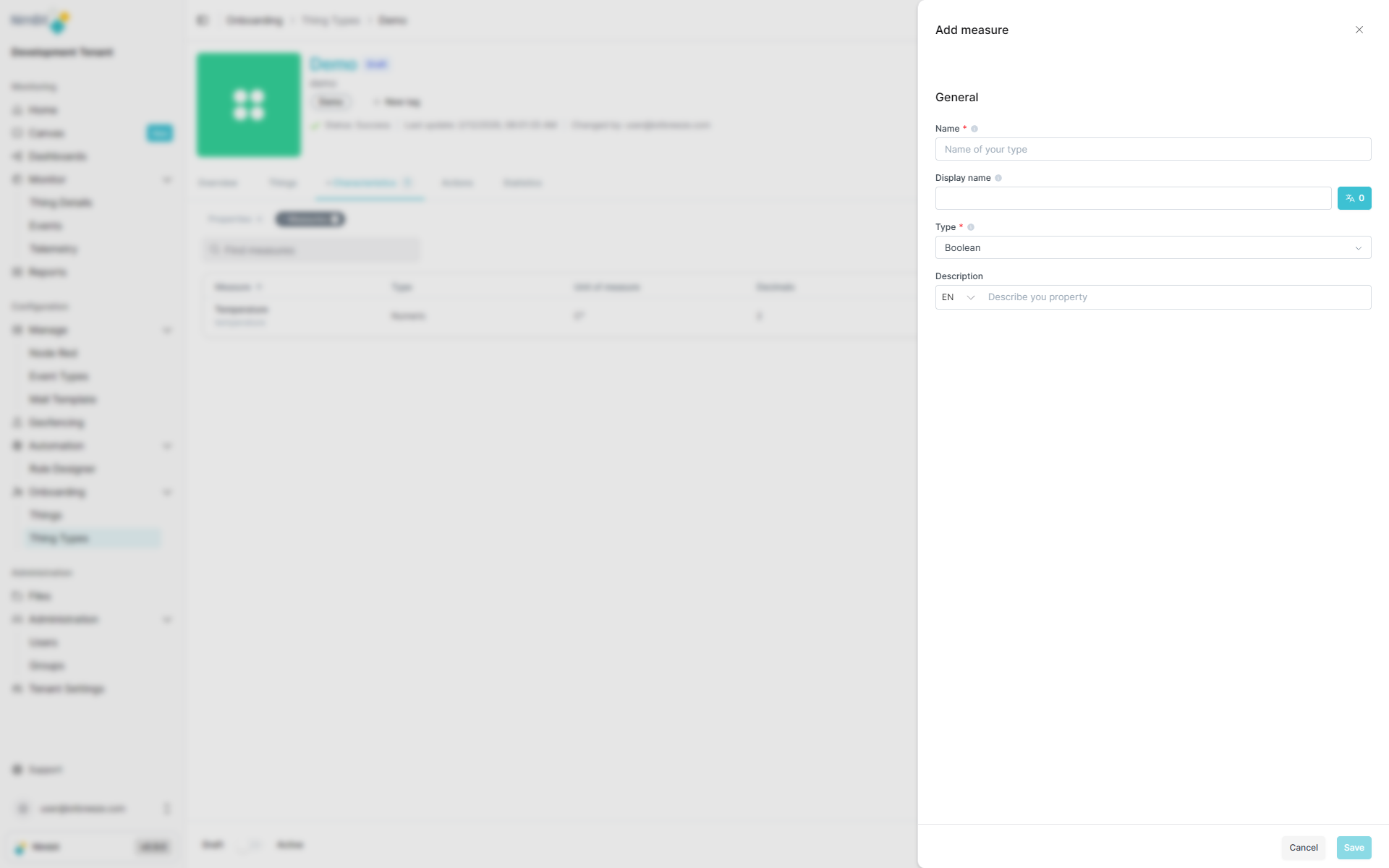
Click "Add Measure", complete the form and hit "Save".
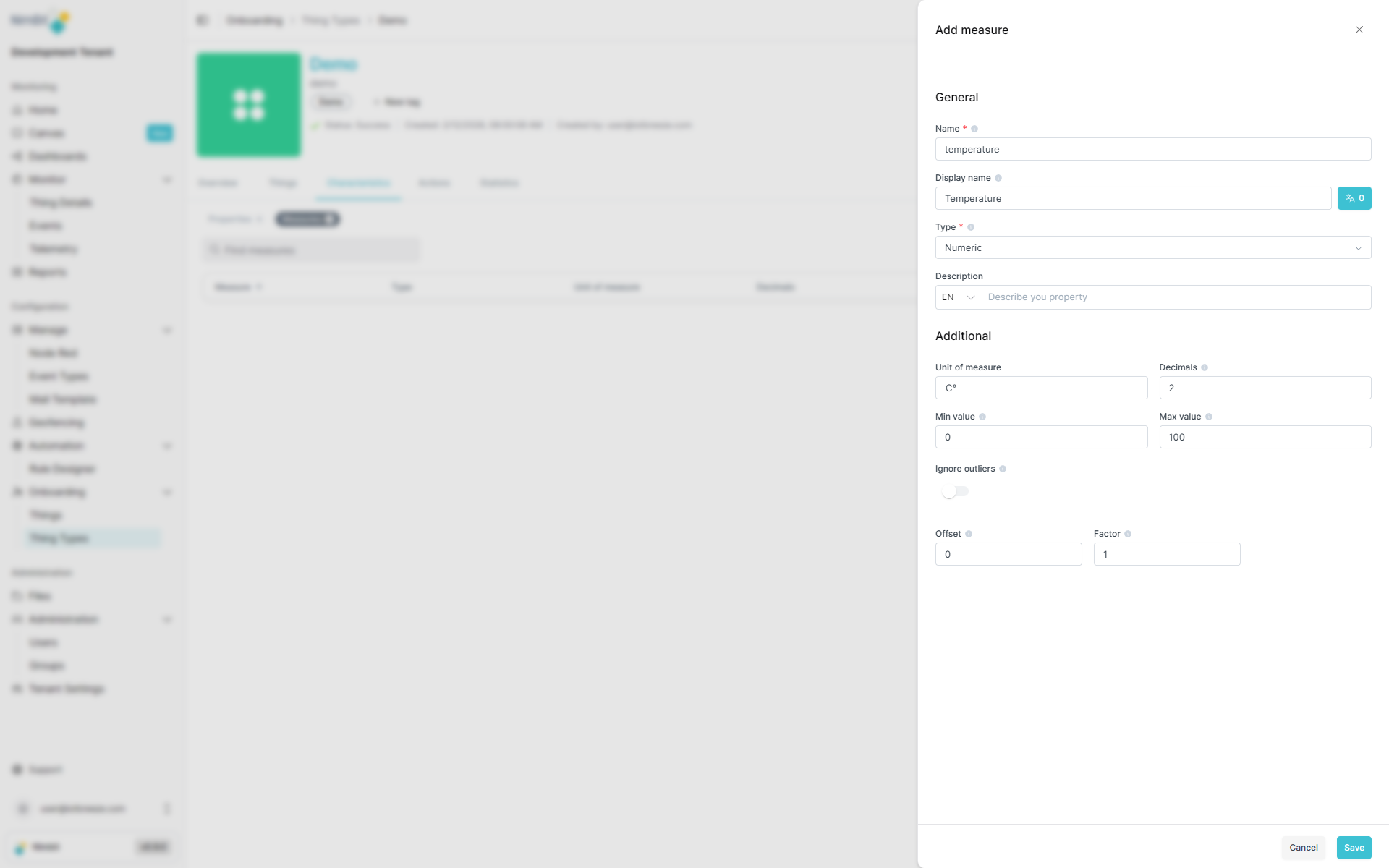
| Field | Required | Description |
|---|---|---|
| Name | ✅ Yes | System name (unique key). Do not start with a number or underscore, No uppercase letters, No special characters except underscore |
| Display Name | ✅ Yes | Shown in the UI. |
| Type | ✅ Yes | One of numeric, string, boolean. |
| Description | ❌ No | Context or usage info. |
Type-Specific Fields
Numeric
- Unit of Measure (e.g., °C, %, kWh)
- Decimals for precision
- Min/Max range
- Ignore Outliers (optional)
- Offset and Factor for value transformation
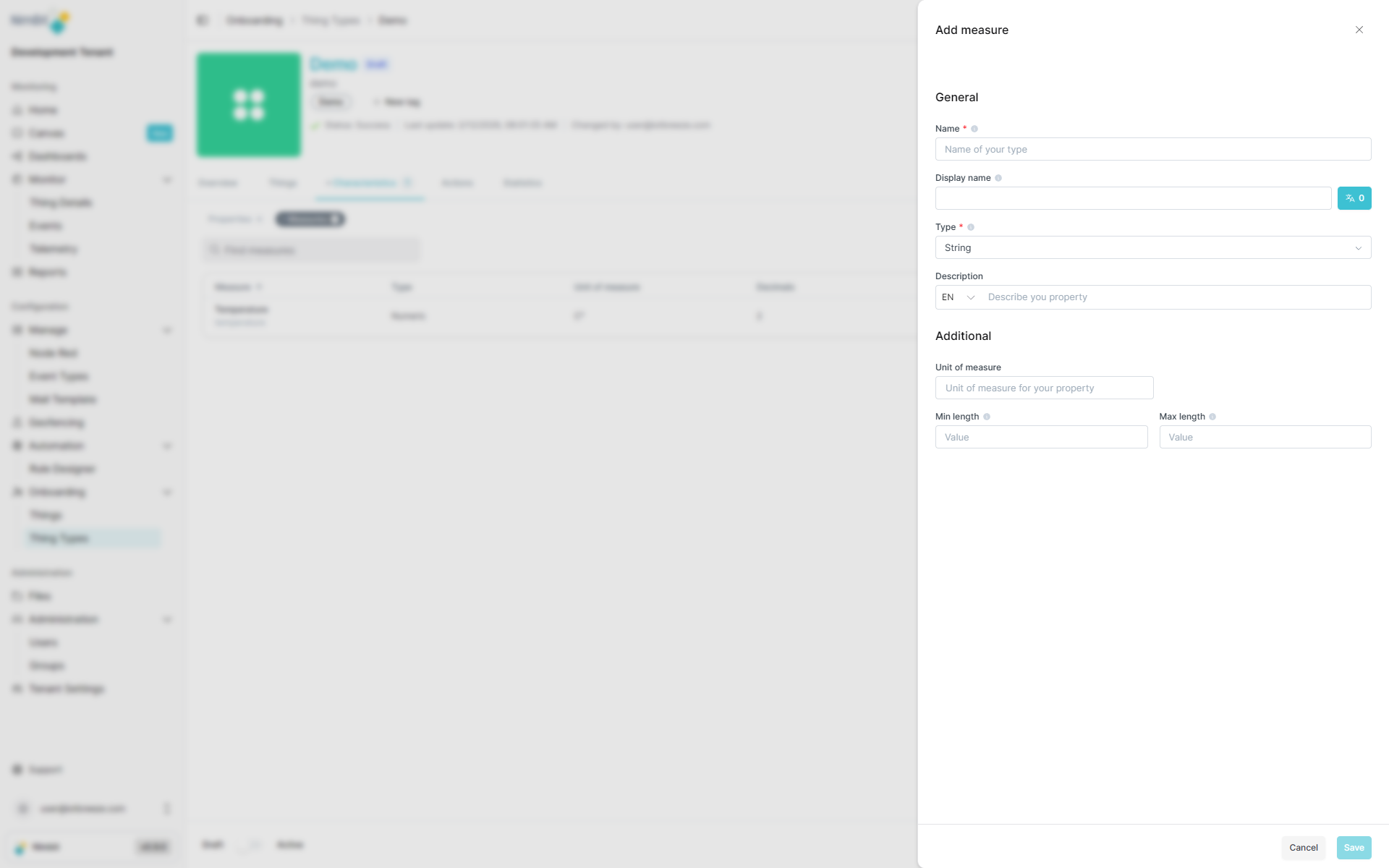
String
-
Unit (optional label)
-
Min and Max Length
Boolean
-
No additional fields
-
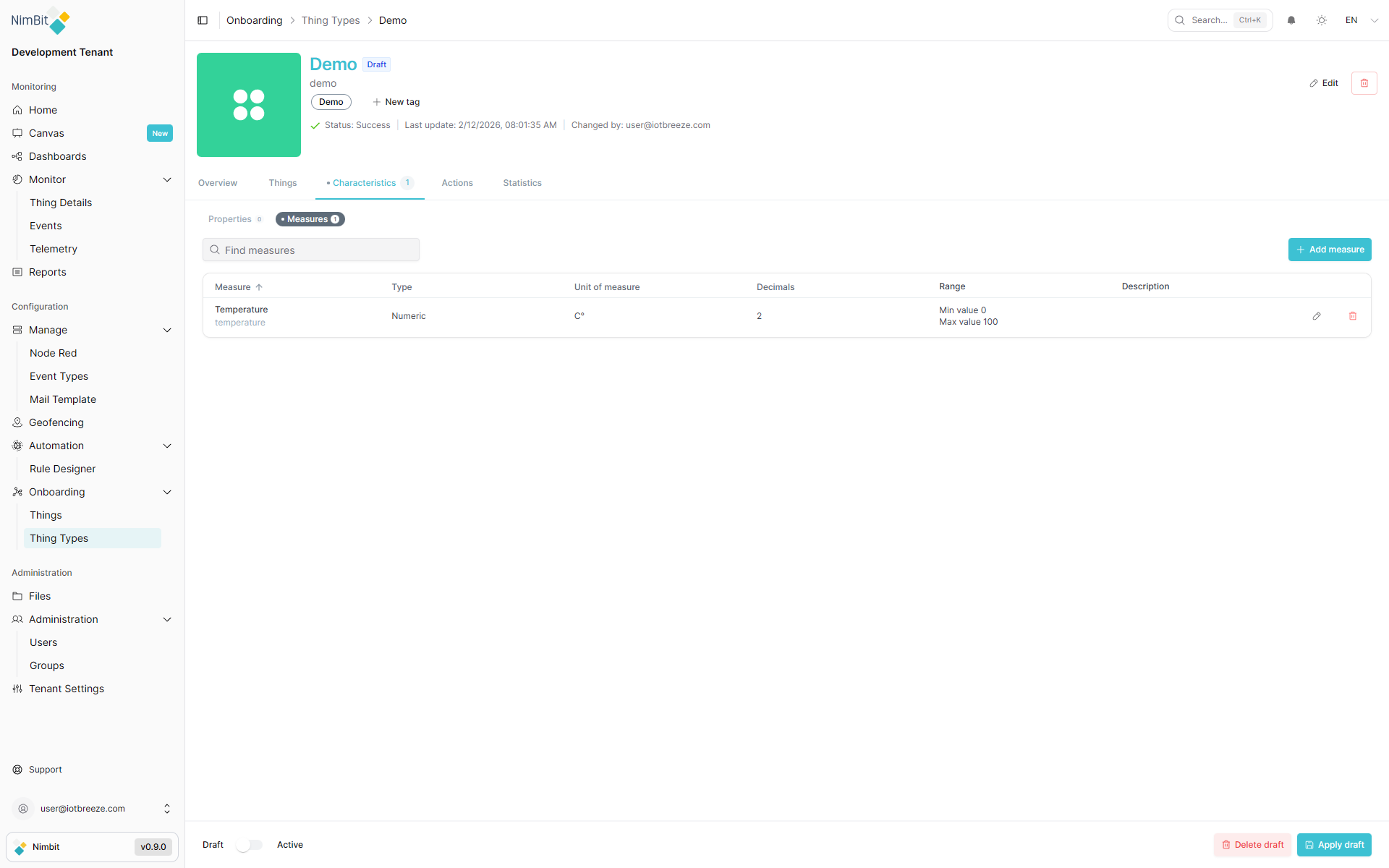
After saving, the measure appears in your draft:
-
Once you're ready, click "Apply" to publish your changes:
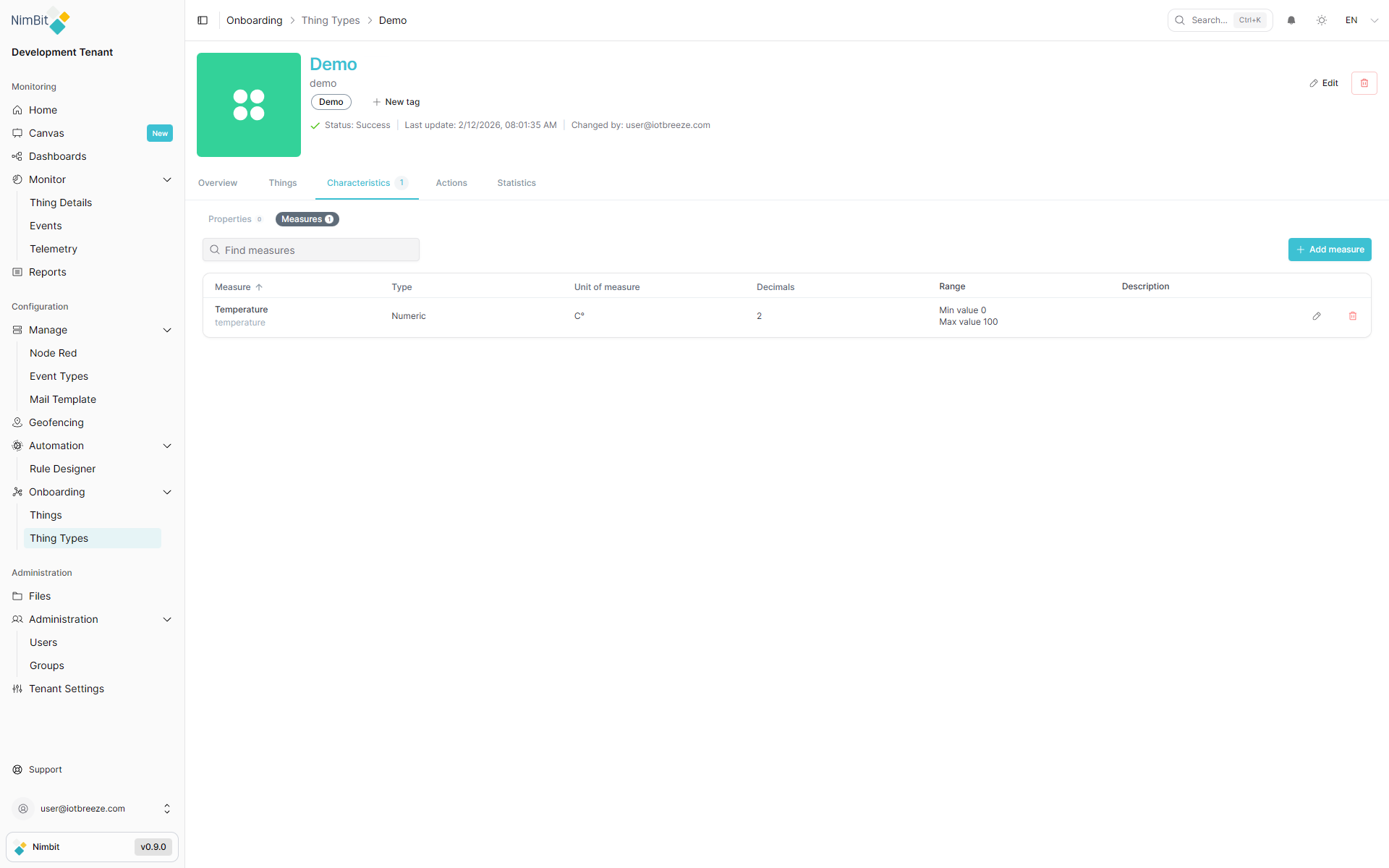
New measures won't be available in Things until the Draft is applied!
Add Properties to Describe Metadata
Properties represent static or metadata attributes - things like device type, firmware version, or installation date.
To define them:
-
Go to the Properties tab.
-
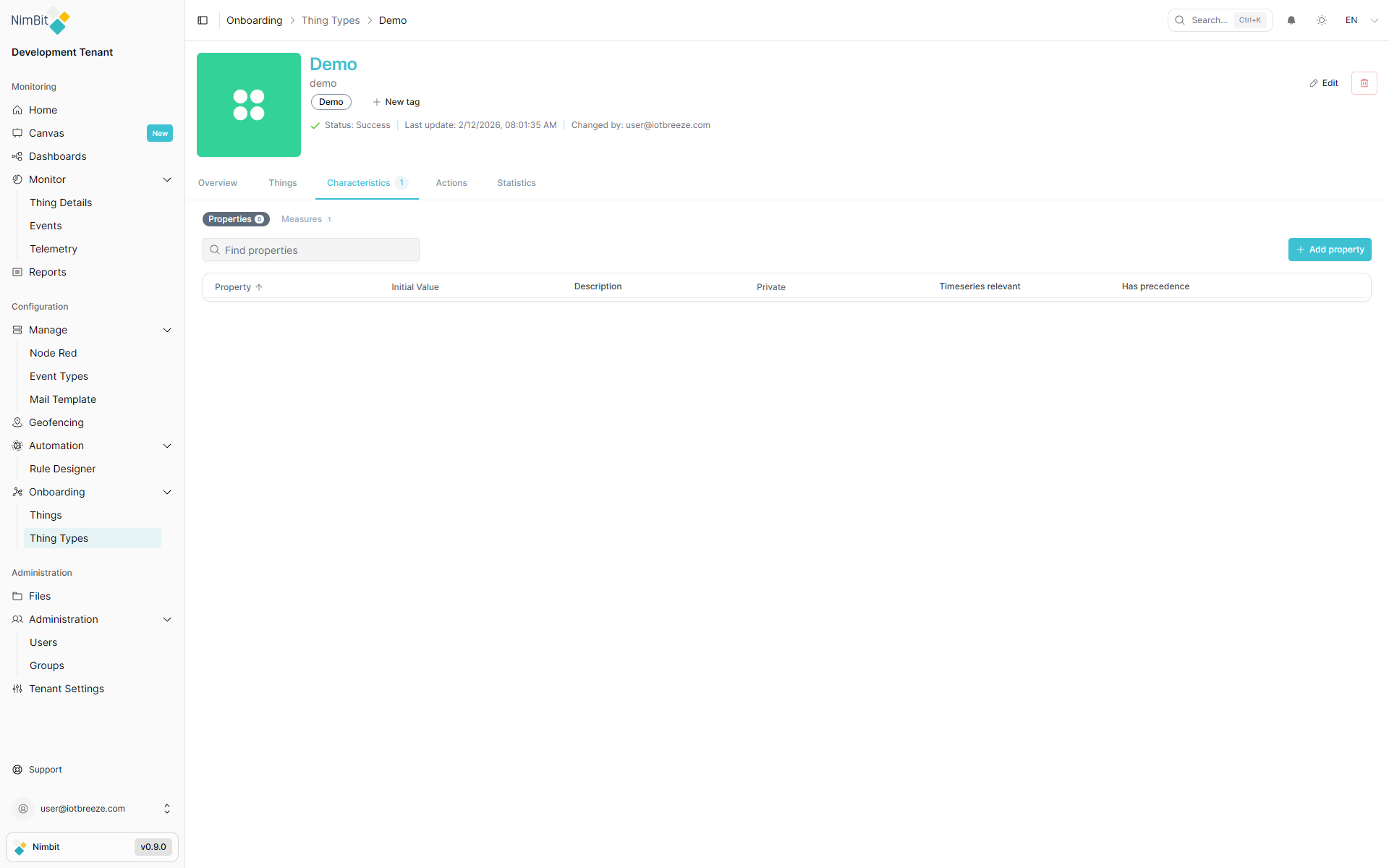
If it's empty:
-
Click "Add Property" and fill out the details:
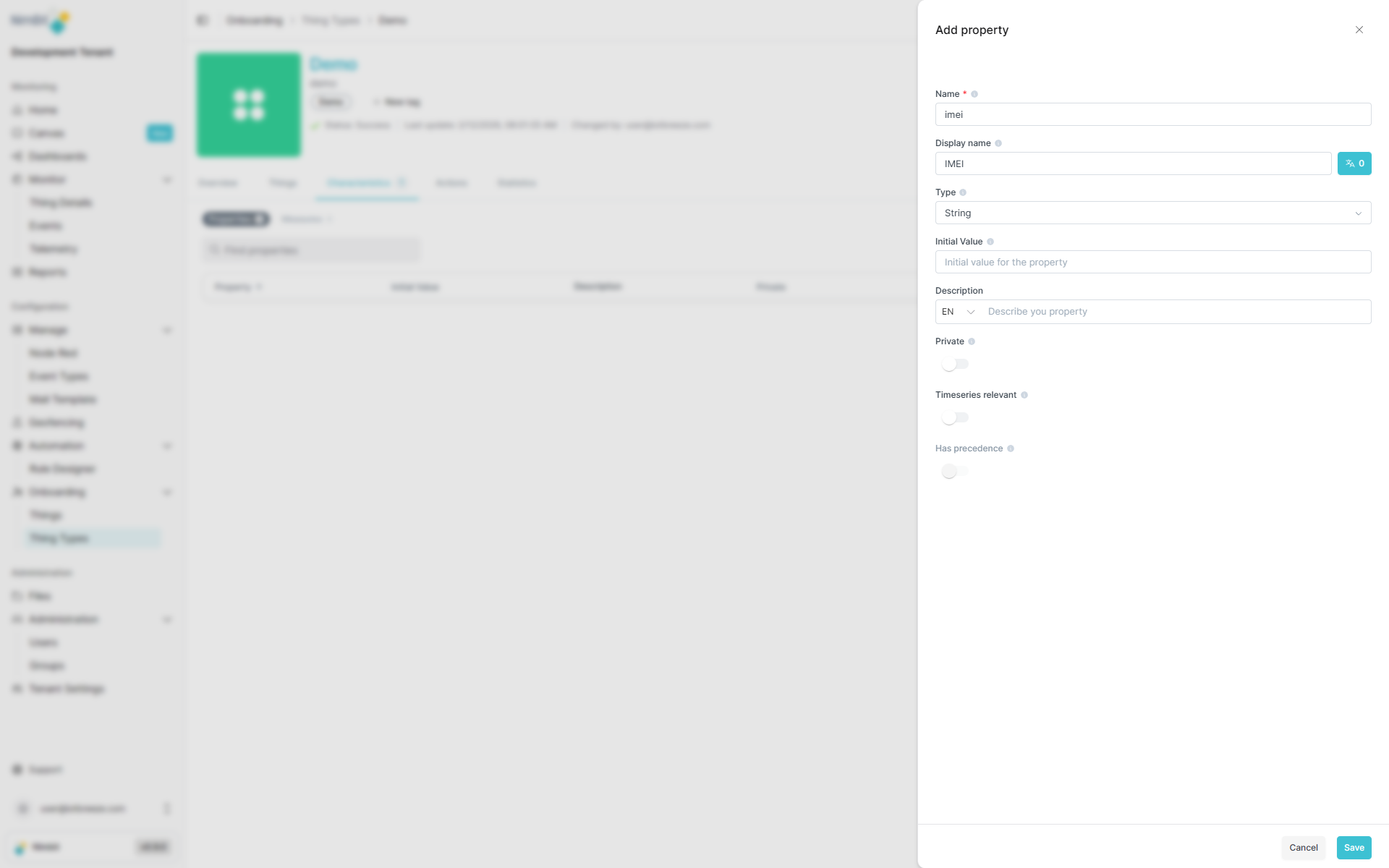
| Field | Required | Description |
|---|---|---|
| Name | ✅ Yes | System name (unique key). Do not start with a number or underscore, No uppercase letters, No special characters except underscore |
| Display Name | ❌ No | UI label |
| Initial Value | ❌ No | Default value assigned on thing creation. |
| Description | ❌ No | Additional context. |
| Private | ❌ No | Hidden from dashboards but usable for logic/filtering. |
| Timeseries Relevant | ❌ No | If true, included in all timeseries messages. |
| Has Precedence | ❌ No | Overrides incoming device values (if Timeseries Relevant is true). |
-
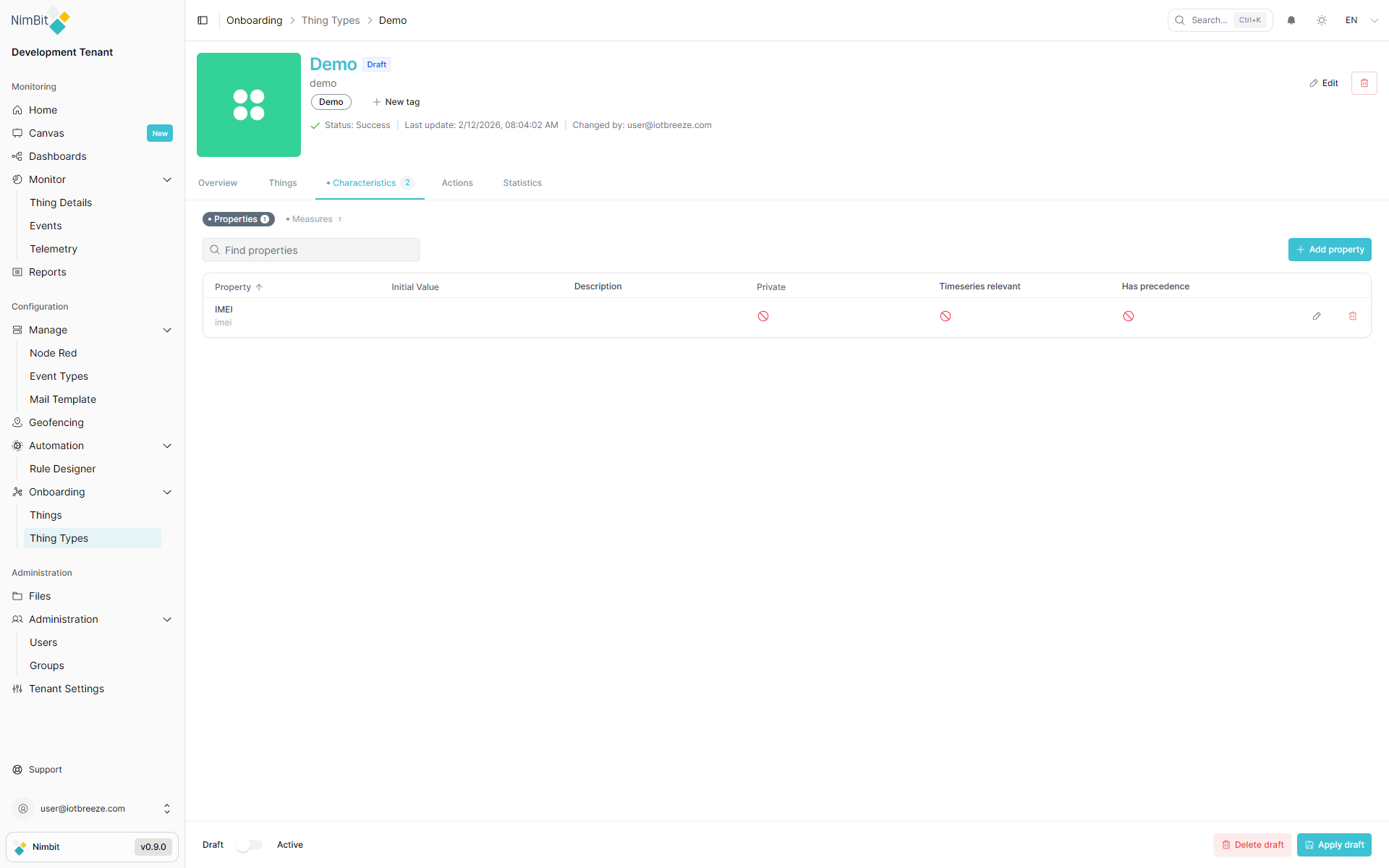
After saving, the property appears in your draft:
Save and Publish Your Draft
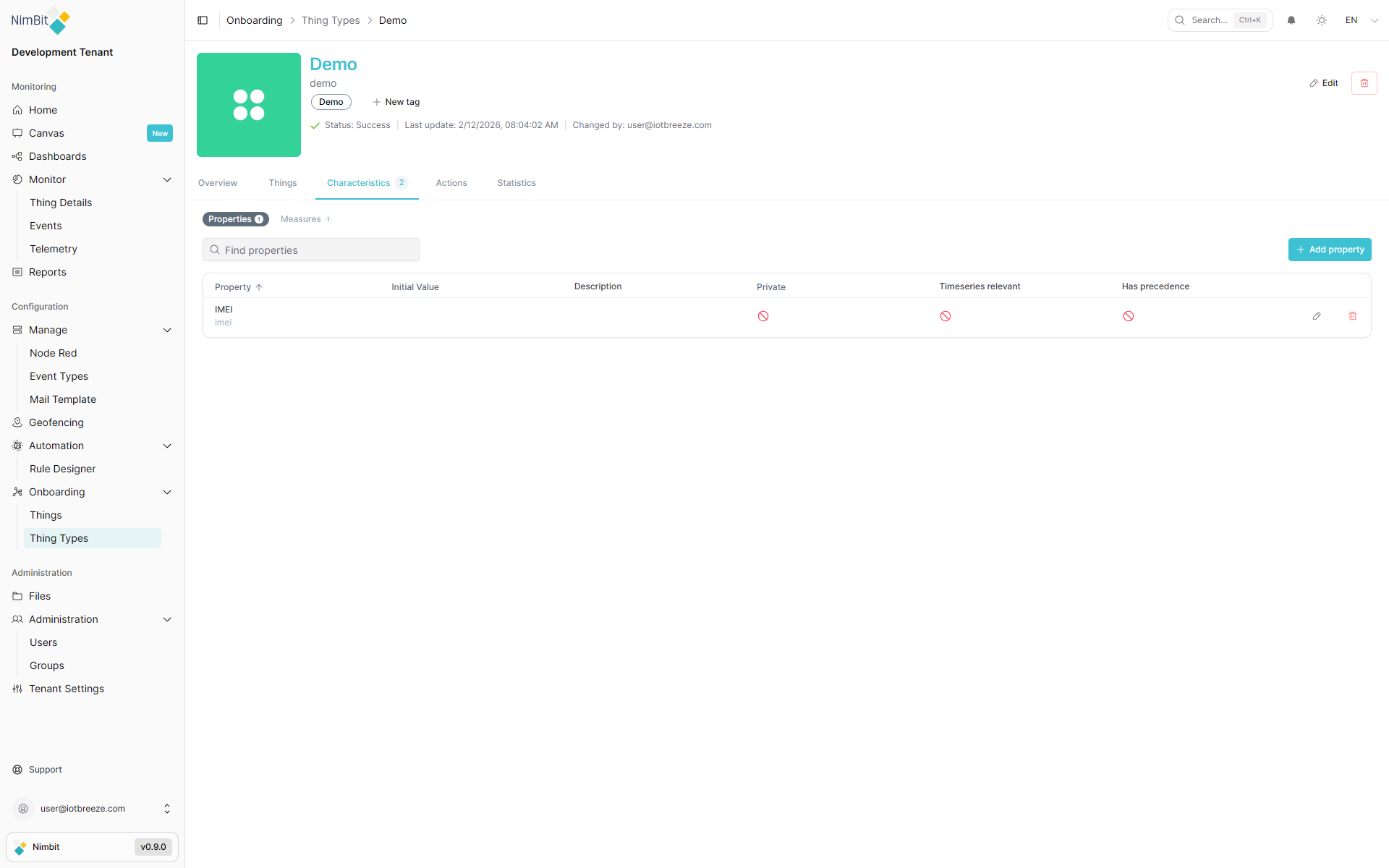
ThingTypes have a shared draft mechanism. You can freely add or adjust properties and measures, but changes won't go live until you're ready.
- Apply: Publishes all changes to the active ThingType.
- Discard: Deletes the current draft version.
New properties and measures will not be available in Things until the Draft is applied!
Managing Things
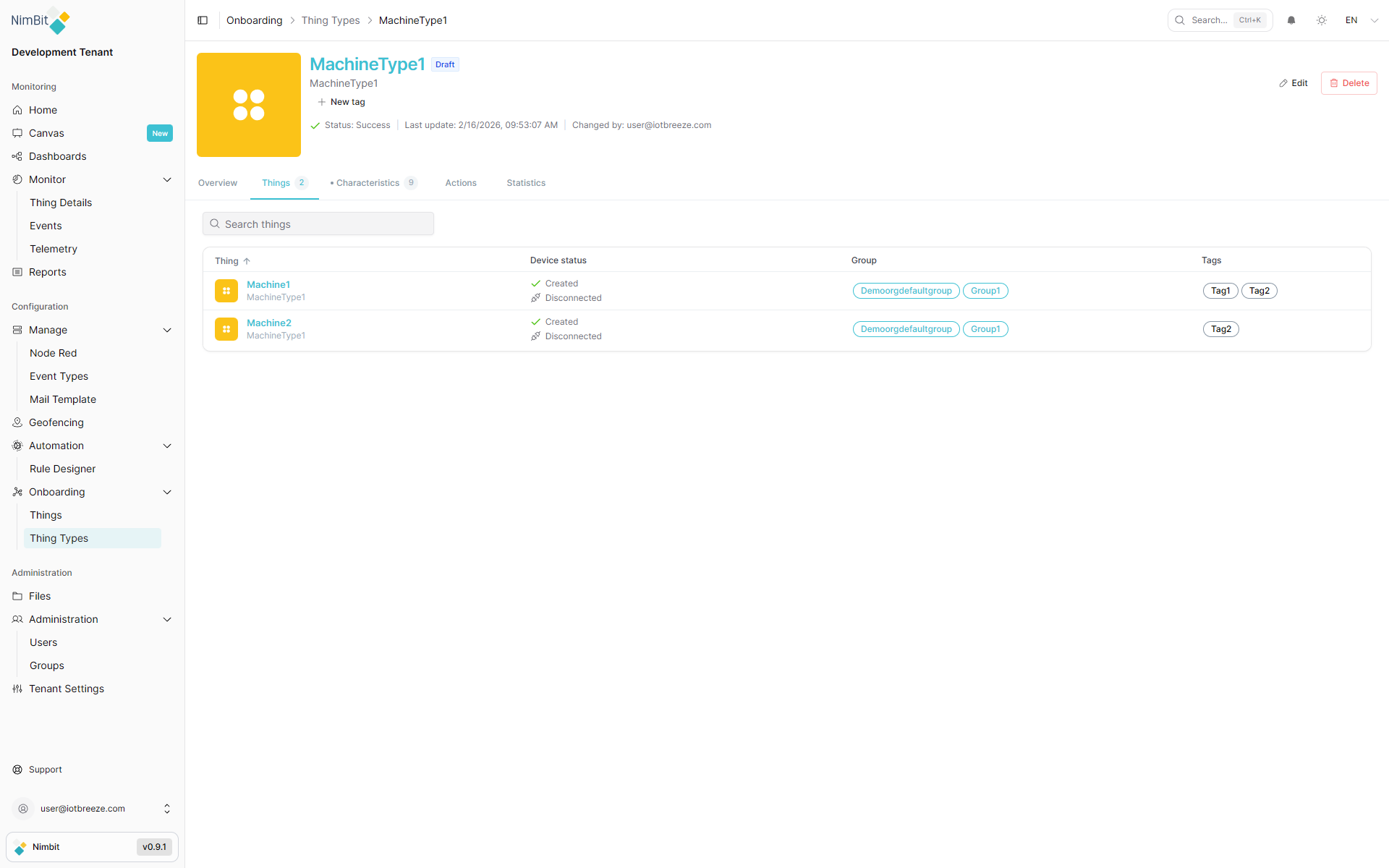
The Things tab provides an overview of all device instances created from this ThingType. This view allows you to monitor, filter and navigate to specific things efficiently.
Viewing Things List
-
Navigate to the Things tab within your ThingType.
-
You'll see a list of all things instantiated from this ThingType:
Features
- Filter and Search: Quickly find specific devices using the search and filter options.
- Quick Navigation: Click on any thing in the list to jump directly to its detail page.
- Overview: See key information about each thing at a glance, including status and important properties.
This centralized view makes it easy to manage all devices of the same type and identify which ones may need attention.
Actions
Actions are executable operations that can be triggered on things of this ThingType. They enable remote control, command execution and integration with external systems.
IoTBreeze supports two types of actions:
- Webhook Actions - Call external HTTP endpoints for integration with third-party services
- Azure C2D (Cloud-to-Device) Actions - Send commands directly to Azure IoT devices
Viewing Actions
Navigate to the Actions tab to see all defined actions for this ThingType:
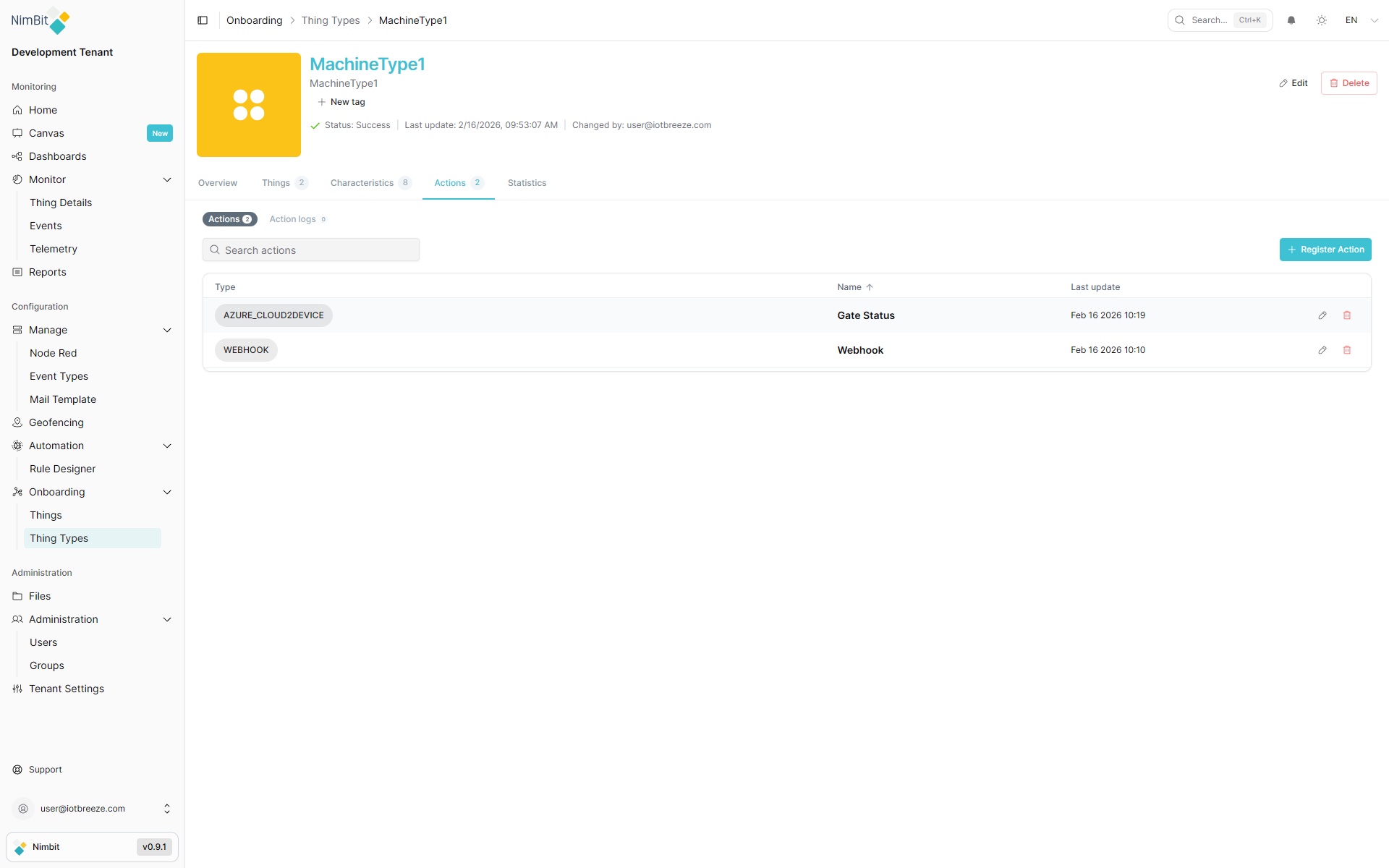
From this view, you can:
- See all configured actions for this ThingType
- Create new actions
- Edit existing actions
- Delete actions that are no longer needed
For detailed information on how to create and configure actions, including Webhook and Azure C2D actions, see the Actions documentation.