Users & Permissions
Overview
Users represent individuals who have access to your IoTBreeze platform. Assigning appropriate roles and group memberships defines user permissions, ensuring secure, organized and efficient management of your resources. Groups are structured hierarchically, allowing users to inherit access rights based on group relationships.
This page guides you through inviting, managing and editing users, along with detailed instructions on managing roles, permissions and hierarchical group assignments.
Invite Users
To invite new users into your IoTBreeze instance, follow these steps:
Navigating to Users
From the sidebar, select Administration → Users.
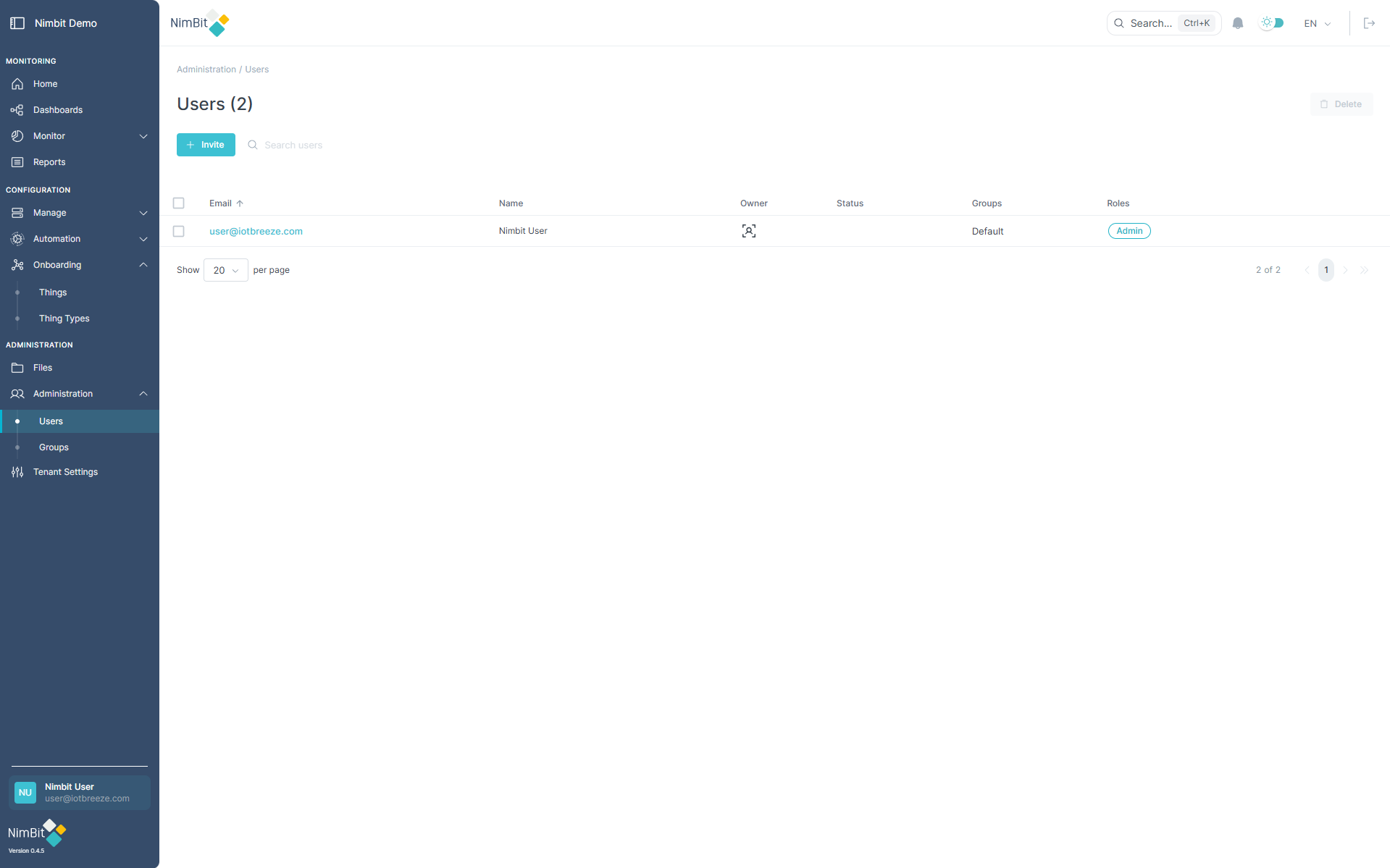
Click "Create" at the top-left corner to open the invitation form.
User Invitation Form
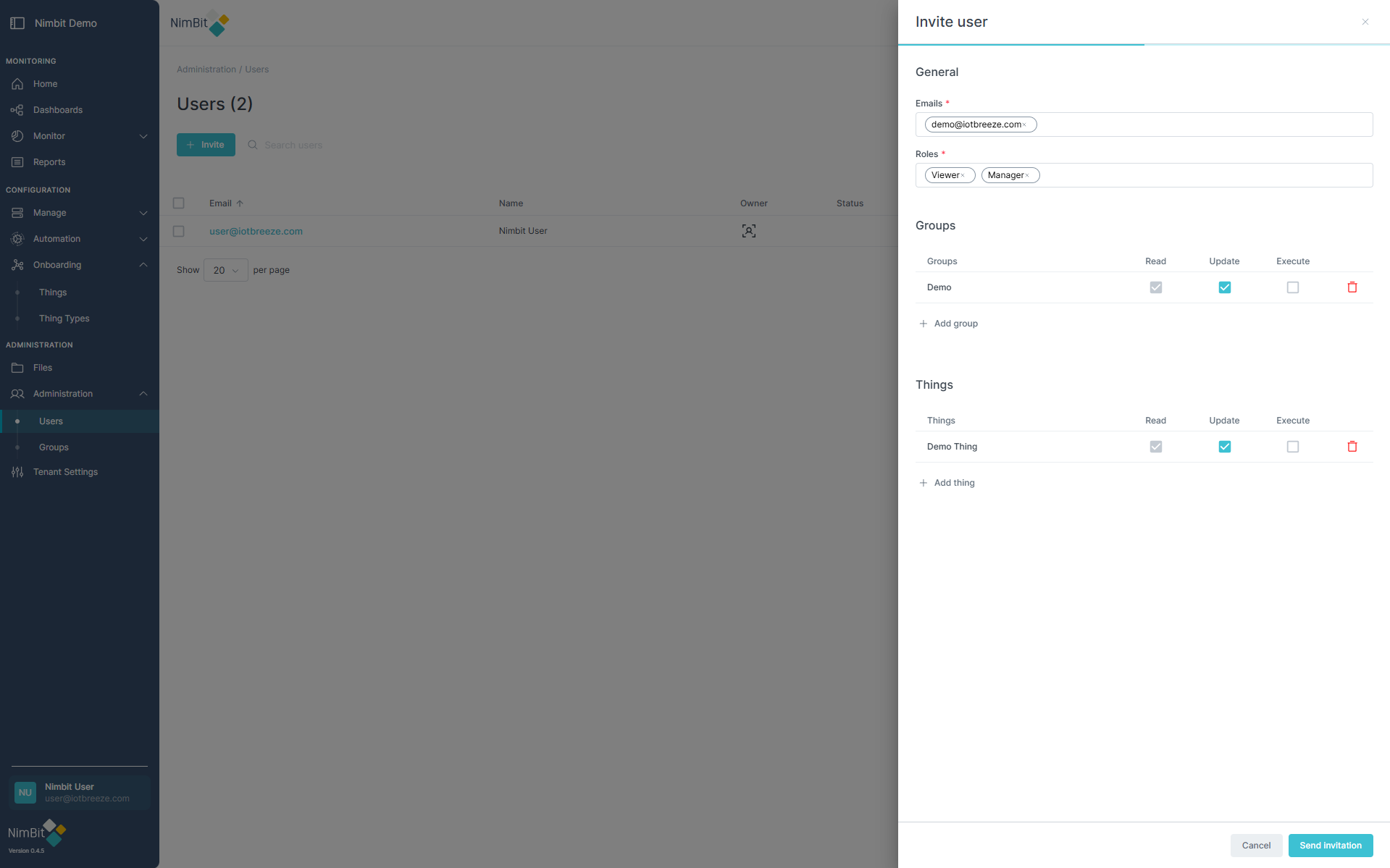
Complete the form to invite one or multiple users simultaneously:
| Field | Required | Description |
|---|---|---|
| Emails | ✅ Yes | Add one or more emails to invite multiple users simultaneously. |
| Roles | ✅ Yes | Select roles to assign permissions. |
| Groups | ✅ Yes* | Choose at least one group; assign permissions: Read (required), Update (includes create/delete) and/or Execute. |
| Things | ✅ Yes* | Optionally assign specific Things individually with similar permissions as groups (Read required, optionally Update and Execute). |
You must select at least one group or Thing to proceed.
Click "Send Invitation" at the bottom-right to invite users.
Upon sending invitations, you can manually copy and share individual invitation links displayed on-screen. Each user also receives an automatic email with the same invitation link.
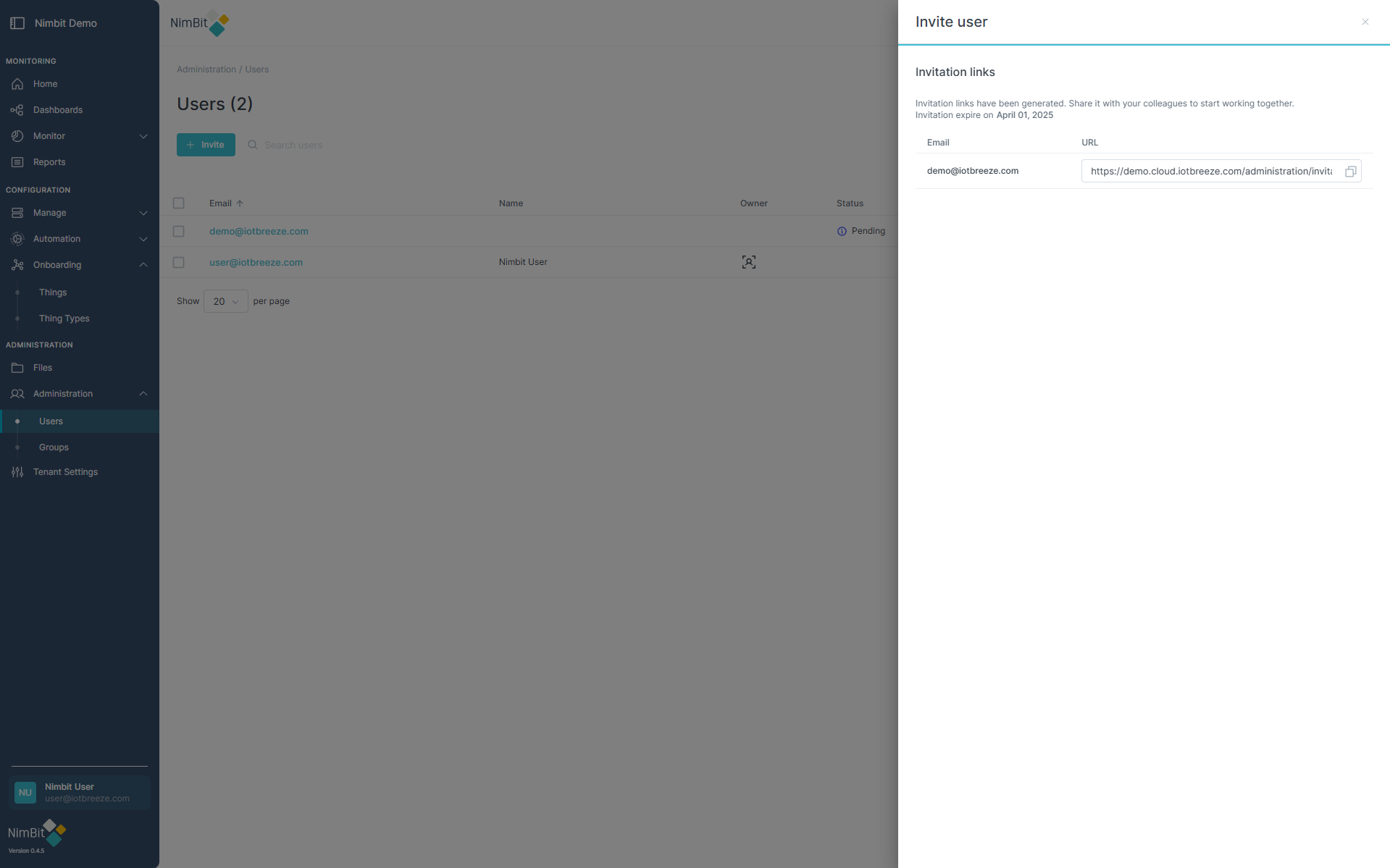
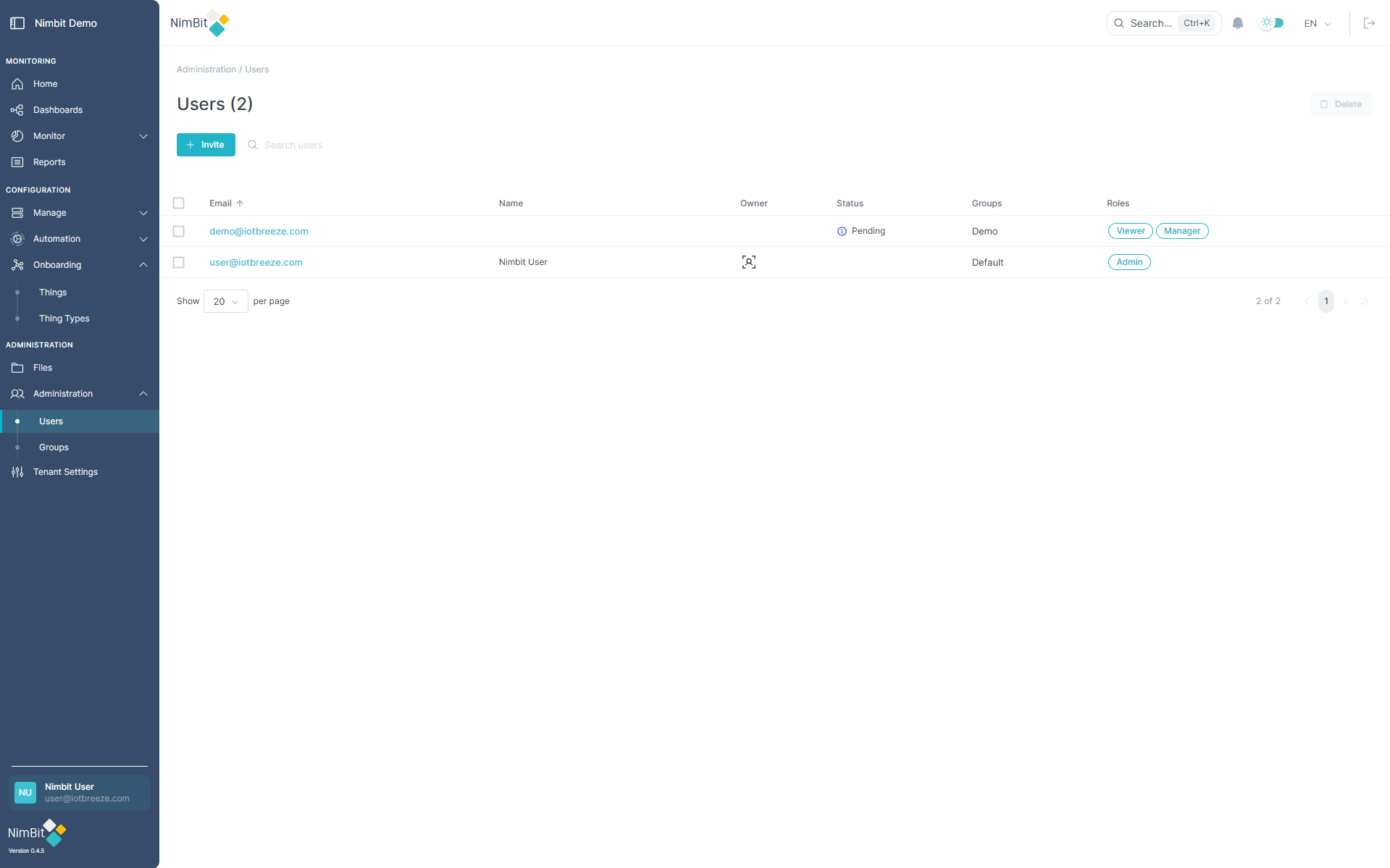
Invited users appear in the user list showing their invitation status:
Editing User Details
To modify user details, follow these steps:
- Navigate to Administration → Users.
- Select a user from the list.
- Click the "Edit" button at the top-right corner.
Edit User Form
Edit these user details as needed:
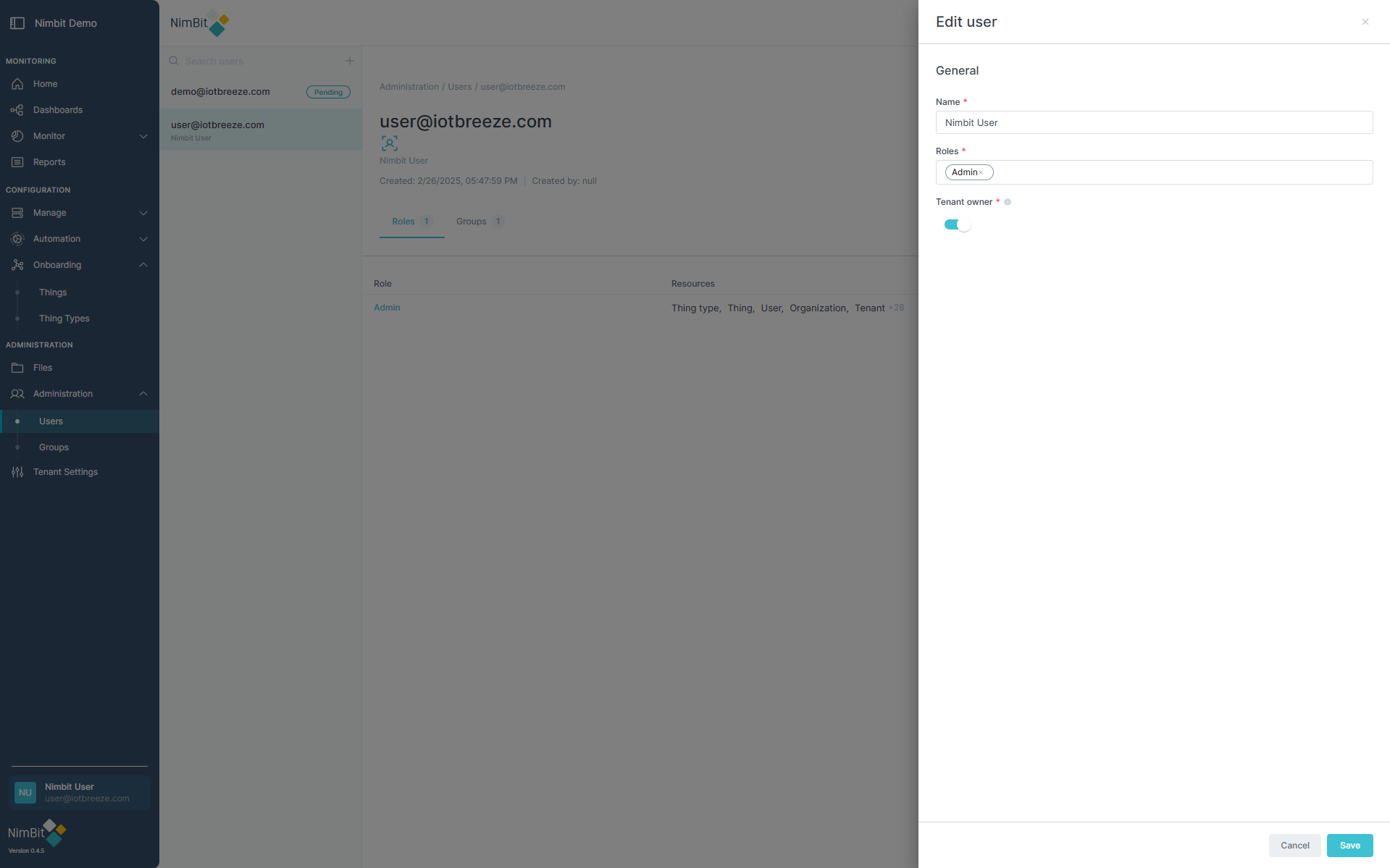
| Field | Description |
|---|---|
| Name | User's full name. |
| Roles | Change user roles (multi-select). |
| Tenant Owner | Toggle tenant ownership (only one allowed per tenant). |
Click "Save" to apply your changes.
Roles Overview
Roles determine specific user permissions in IoTBreeze. Available roles include:
- Admin: Full administrative access.
- System Admin: Manages system and technical configurations.
- Viewer: View-only permissions.
- Manager: Manages resources and users, excluding system-level settings.
- Modeler: Creates/manages ThingTypes and data models.
- Inviration: Manages user invitations and onboarding.
- Theme Designer: Customizes platform appearance and themes.
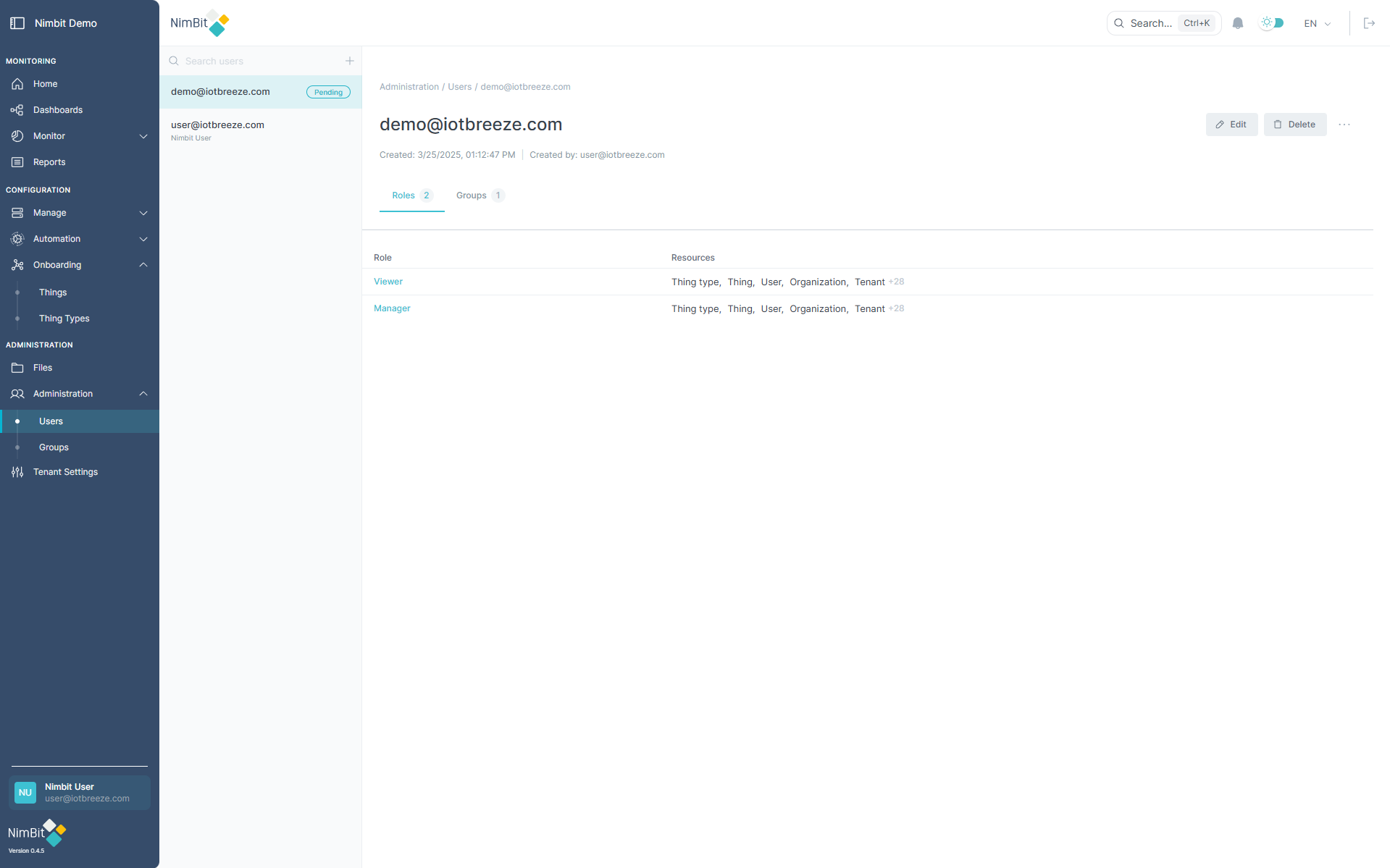
Roles Tab
View assigned roles and corresponding permissions under the Roles tab.
Understanding Groups & Hierarchy
Groups in IoTBreeze are organized hierarchically, forming a pyramid-like structure. Users inherit access from child groups within the hierarchy. For example:
- If a user is assigned to Group A (parent) and Group B (child) contains a specific Thing, the user gains access to that Thing through inheritance, even if not directly assigned to Group B.
This hierarchical design streamlines permission management and resource visibility.
Managing Group Membership
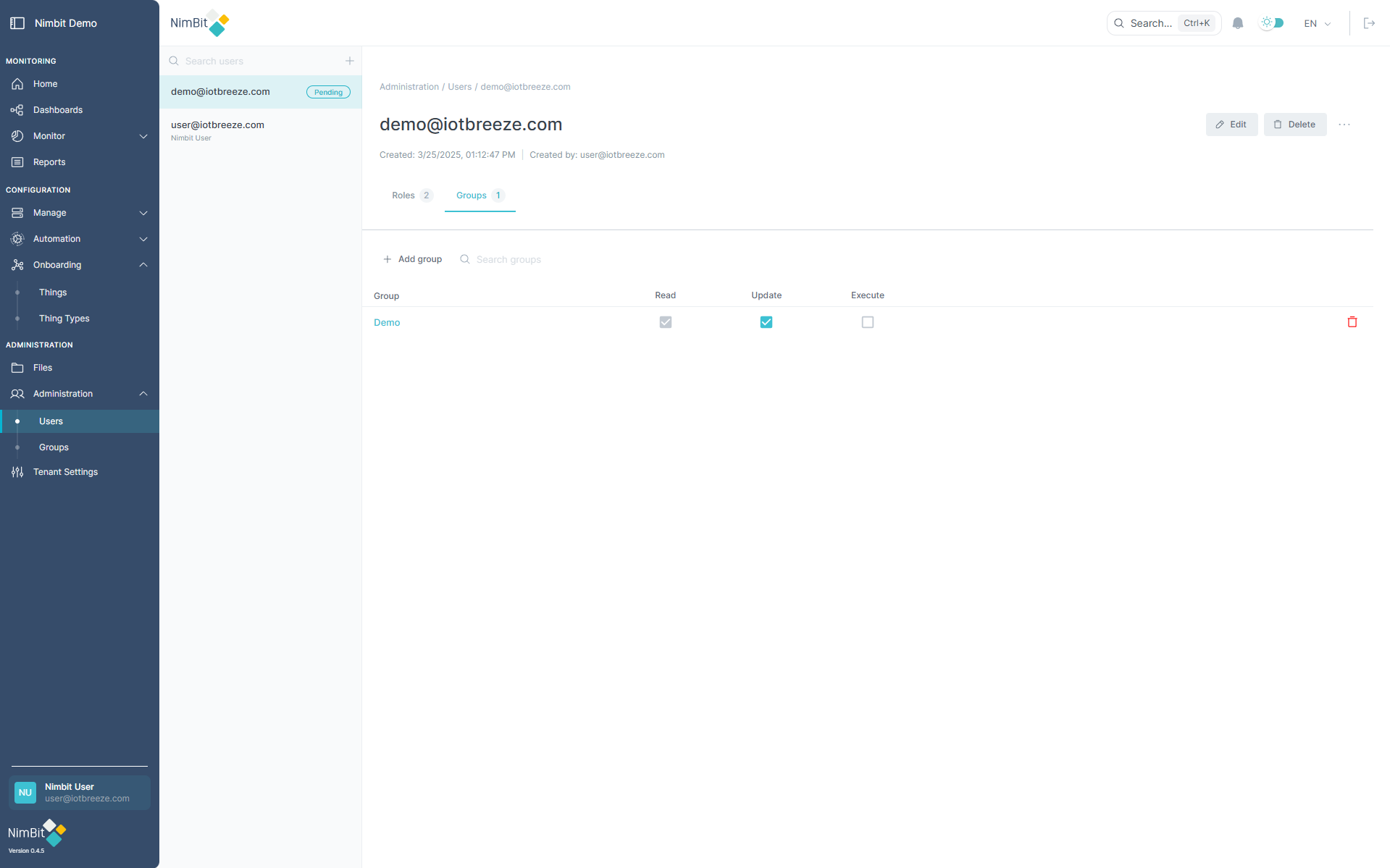
Within user details, manage groups and permissions:
- Read permission is mandatory; it cannot be deselected separately.
- Modify Update and Execute permissions by toggling their checkboxes.
- Completely remove a group by clicking "Delete" next to the group's entry.
Proper group configuration ensures clear, secure and efficient resource management.