Email Settings
Configure outgoing email settings for your tenant on the Email page. If not yet active, you must enable custom SMTP before configuration.
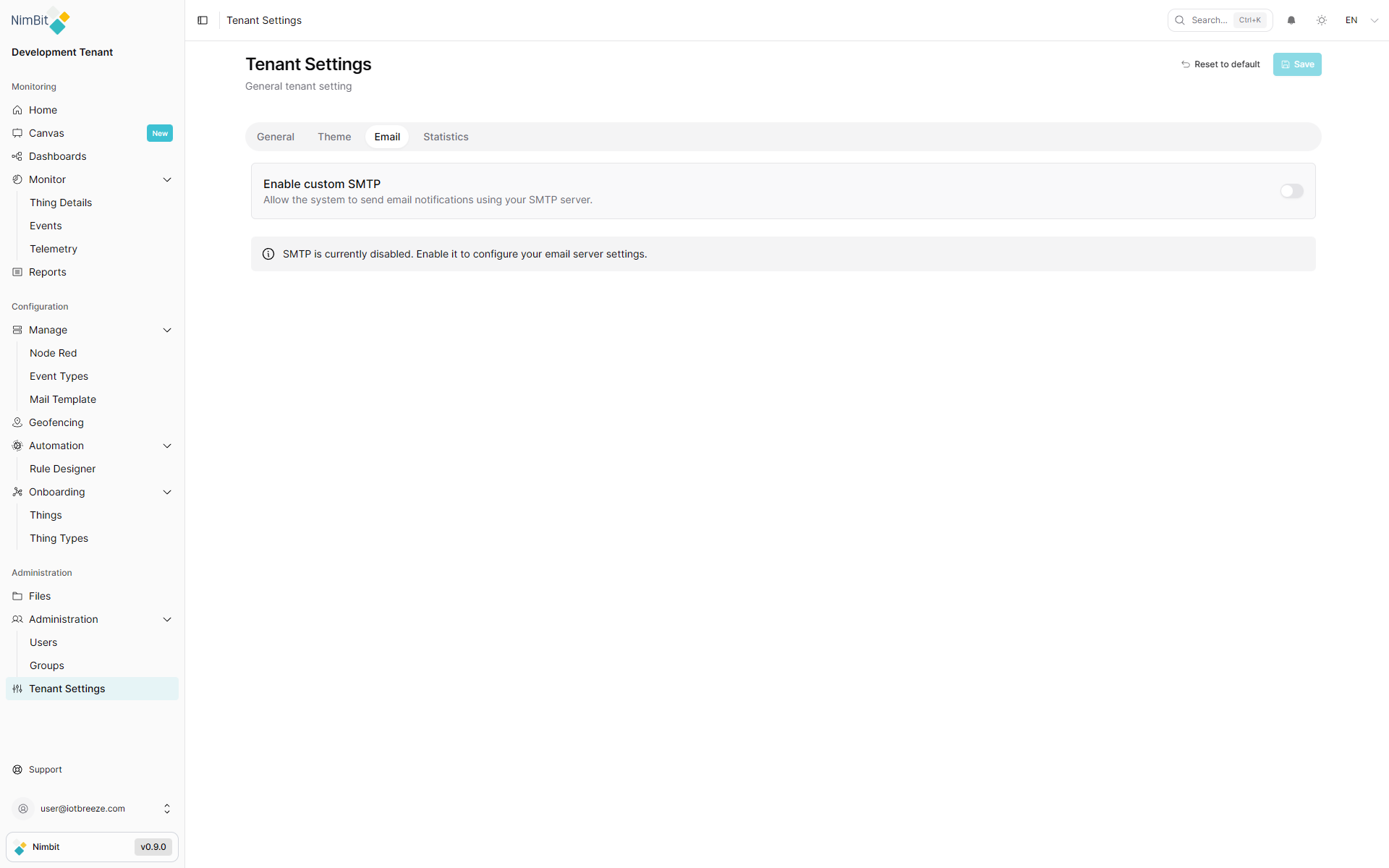
Once enabled, enter the SMTP configuration details:
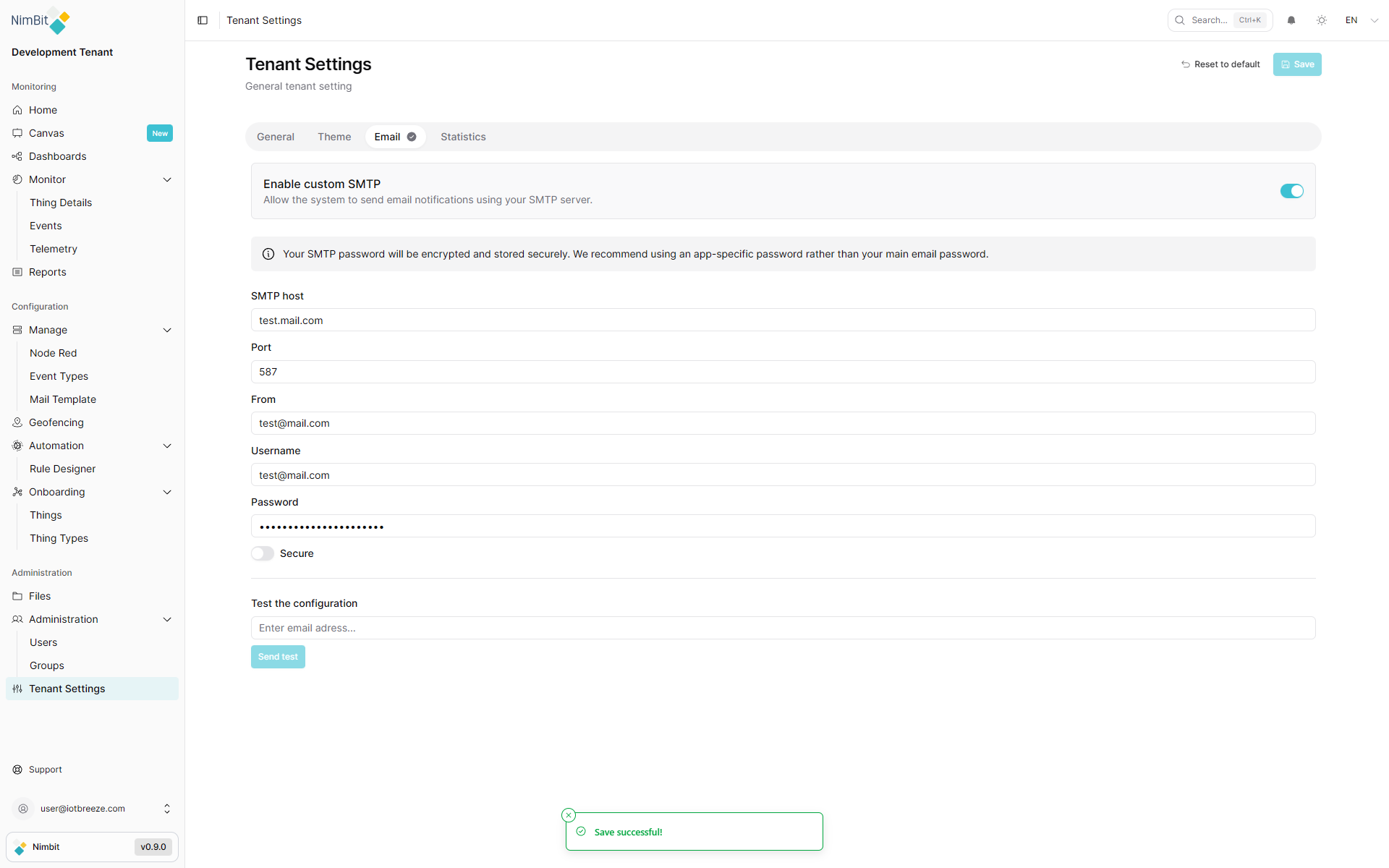
Configuration Fields
| Field | Required | Description |
|---|---|---|
| SMTP Host | ✅ Yes | The mail server hostname (e.g., smtp.example.com). |
| Port | ✅ Yes | Port for communication (25, 465, or 587). |
| From | ✅ Yes | Default sender address used in all emails. |
| Username | ✅ Yes | SMTP username. |
| Password | ✅ Yes | SMTP password. |
| Secure | ✅ Yes | Choose between Yes or No. Affects TLS usage. Note: "Secure" refers to protocol encryption, not whether data is protected overall. |
After saving your configuration, use the Test Email function to validate the connection and credentials.
info
The test button becomes active only after saving your configuration.
Save or Reset
- Save: Applies all changes.
- Reset to Default: Resets all tenant settings, including email config, uploaded images and theme preferences.