Event Types
Event Types define the categories of events in your IoT system. While events are the individual records of things that happened, event types are the templates that classify those events and determine what automated actions should be triggered when they occur.
Why Event Types Matter
Event types serve two key purposes:
- Classification - They categorize events so you can distinguish between different kinds of occurrences (e.g., device connectivity changes vs. geofence boundary crossings vs. user account modifications)
- Automation - They let you attach automated actions - such as notifications, webhooks, or emails - that fire whenever an event of that type is generated
Without event types, events would be unstructured records. Event types give them meaning and enable automated responses.
How Event Types Work
Every event in the system is associated with exactly one event type. When the system generates an event (e.g., a Thing is updated), it assigns the event to the appropriate event type based on the resource and operation involved.
If actions are configured on that event type - for instance, a notification action - the system automatically executes those actions when the event occurs.
System Event Types
The system provides built-in event types for tracking resource operations:
- Thing - Events when IoT devices are created, updated, or deleted
- ThingType - Events when thing type definitions change
- Group - Events when groups are modified
- User - Events when user accounts change
- ThingConnectivityEvent - Events when device connectivity status changes
- Geofence - Events when a device enters or exits a geofence boundary
These event types are managed by the system and cannot be deleted.
Custom Event Types
You can create your own event types for two primary use cases:
-
Rule-generated events - When you build rules in the Rule Designer, you select a custom event type to categorize the events those rules produce. The DIP (Data Ingestion Pipeline) evaluates incoming machine telemetry against your rules and when conditions are met, creates an event of the specified type. Custom event types with the Rule Evaluation display type show a specialized detail view with the rule expression, matching conditions and actual data values.
-
External events - Third-party systems can send events to Nimbit via the API using custom event types, enabling centralized monitoring across your entire infrastructure.
By attaching actions (notifications, webhooks, emails) to custom event types, you build end-to-end automation: machine data arrives, rules evaluate it, events are created and actions fire automatically.
Event Type Visibility and Groups
An event type must be assigned to at least one group for users to see its events. Users can only see events whose event type belongs to one of their groups. If an event type is not in any of a user's groups, the corresponding events will be invisible to that user.
When creating or editing an event type, use the Group field to assign it to the appropriate groups. This is especially important for custom event types used with the Rules Engine - if you forget to assign a group, no one will see the rule-generated events.
Accessing Event Types
Navigate to Manage > Event Types in the main sidebar under Configuration, or go directly to /manage/event-types.
Event Types Management Page
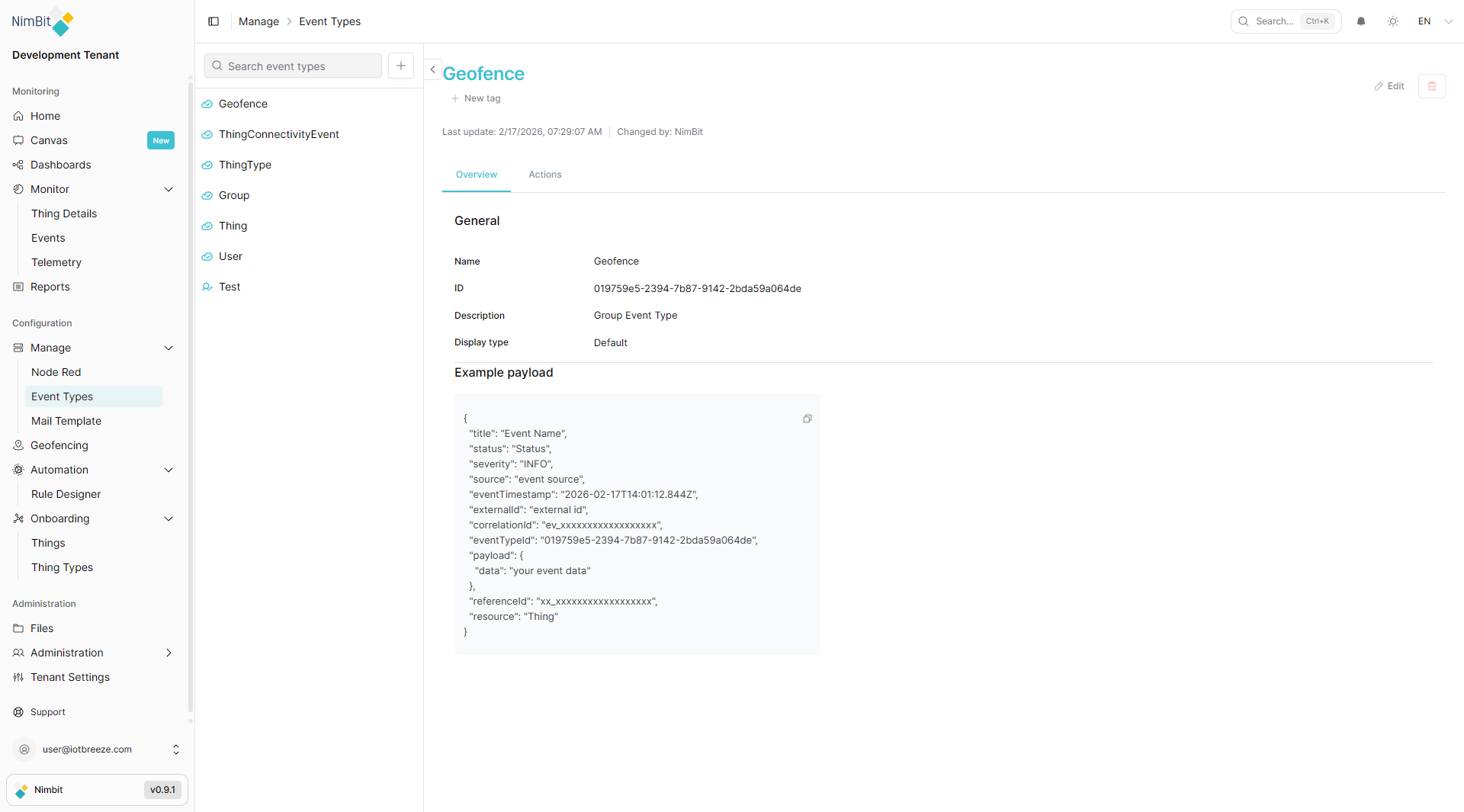
The Event Types page uses a master-detail layout.
Page Layout
| Section | Description |
|---|---|
| Left panel | Searchable list of all event types, each with an icon and name |
| Right panel | Detail view for the selected event type, with Overview and Actions tabs |
| Search bar | Filter event types by name at the top of the left panel |
| + Button | Create a new event type (top of left panel) |
Event Type List
The left panel lists all available event types. Click any entry to view its details in the right panel. Use the search bar to filter by name (case-insensitive, real-time filtering).
A collapse/expand button between the left and right panels lets you toggle the left panel visibility.
Creating an Event Type
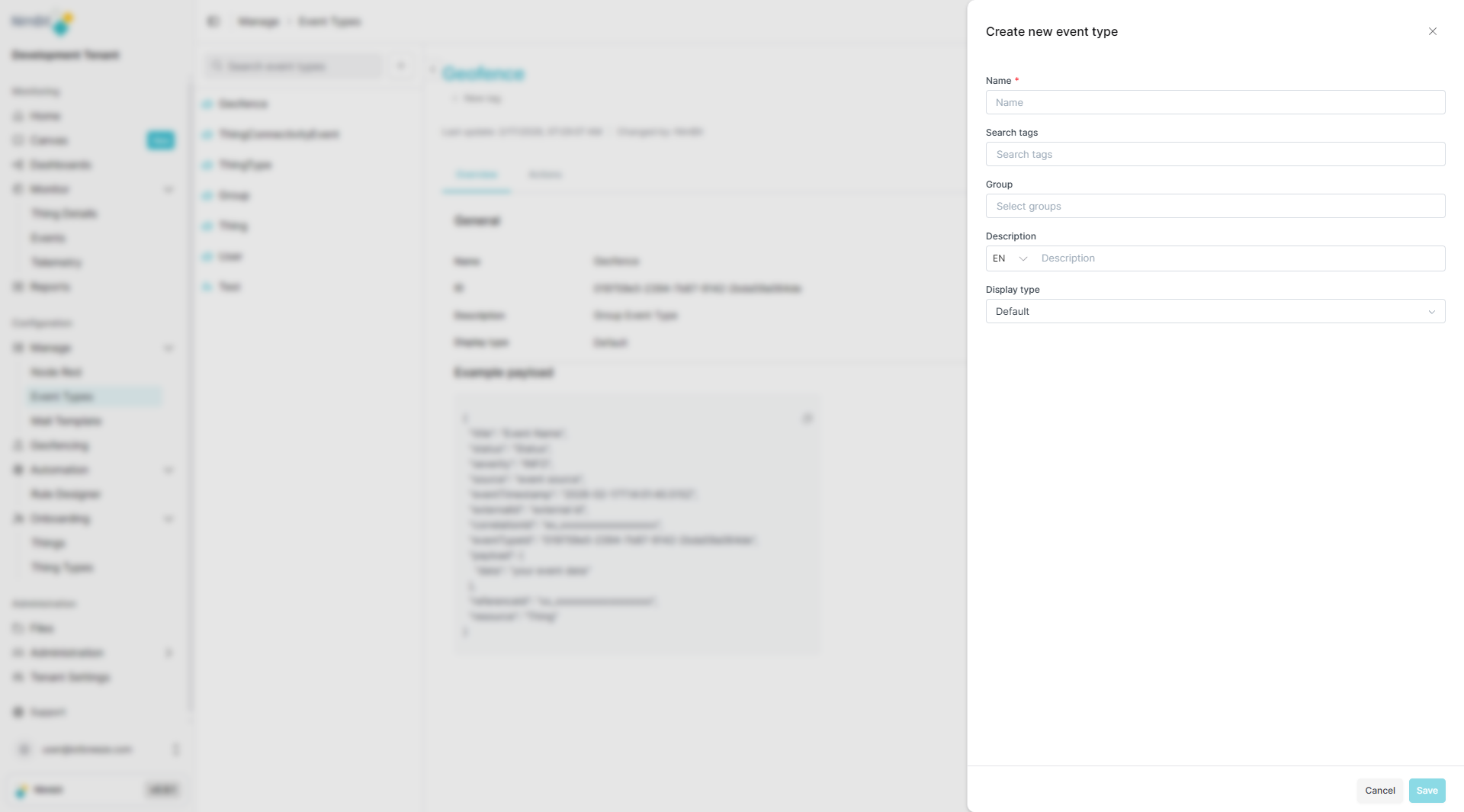
Click the + button at the top of the left panel to open the Create dialog.
Fields
| Field | Required | Description |
|---|---|---|
| Name | ✅ Yes | A descriptive name for the event type (max 128 characters) |
| Search tags | ❌ No | Tags for categorizing and finding the event type |
| Group | ❌ No | Assign the event type to one or more groups. Users can only see events whose event type is in one of their groups. While technically optional, this field is required in practice for events to be visible to users. |
| Description | ❌ No | A description of the event type's purpose. Supports multiple languages (EN/DE) via a language selector |
| Display type | ✅ Yes | Controls how events of this type are displayed in the UI. Options: Default or Rule Evaluation |
Click Save to create the event type. It will immediately appear in the left panel list.
Display Types
- Default - Standard event display with severity icon, title and resource information. Use this for general-purpose event types, external events and system resource tracking.
- Rule Evaluation - Specialized display for events generated by the Rules Engine via the DIP. When viewing events of this type, an additional Rule Evaluation tab appears showing the rule expression, evaluation status, which conditions matched and the actual telemetry values that triggered the rule. Use this display type for any event type that will be referenced by rules in the Rule Designer.
Event Type Detail View
Select an event type from the list to view its details.
Header
The header shows:
- Event type name as the heading
- New tag button - Add tags to the event type
- Edit button - Modify the event type settings
- Delete button - Remove the event type
- Last update - Timestamp of the most recent modification
- Changed by - The user or system that last modified the event type
Tabs
| Tab | Description |
|---|---|
| Overview | General information and an example event payload |
| Actions | Automated actions configured for this event type |
Overview Tab
General Information
A table showing key properties of the event type:
| Property | Description |
|---|---|
| Name | The display name |
| ID | Unique identifier for the event type |
| Description | The event type's purpose description |
| Display type | How events of this type are rendered (Default or Rule Evaluation) |
Example Payload
The Overview tab includes an example JSON payload showing the structure that events of this type will have. This is useful when building integrations or configuring webhooks, as it shows the exact data format you can expect.
The payload structure includes:
| Field | Description |
|---|---|
| title | Human-readable event title |
| status | Current status of the event |
| severity | Severity level: INFO, WARNING, ERROR, or CRITICAL |
| source | Where the event originated |
| eventTimestamp | When the event occurred (ISO 8601 format) |
| externalId | Identifier from an external system, if applicable |
| correlationId | Links related events from the same operation |
| eventTypeId | The ID of this event type |
| payload | Custom data specific to the event - structure varies by event type |
| referenceId | The ID of the resource that generated the event |
| resource | The resource type (Thing, Group, User, etc.) |
Actions Tab
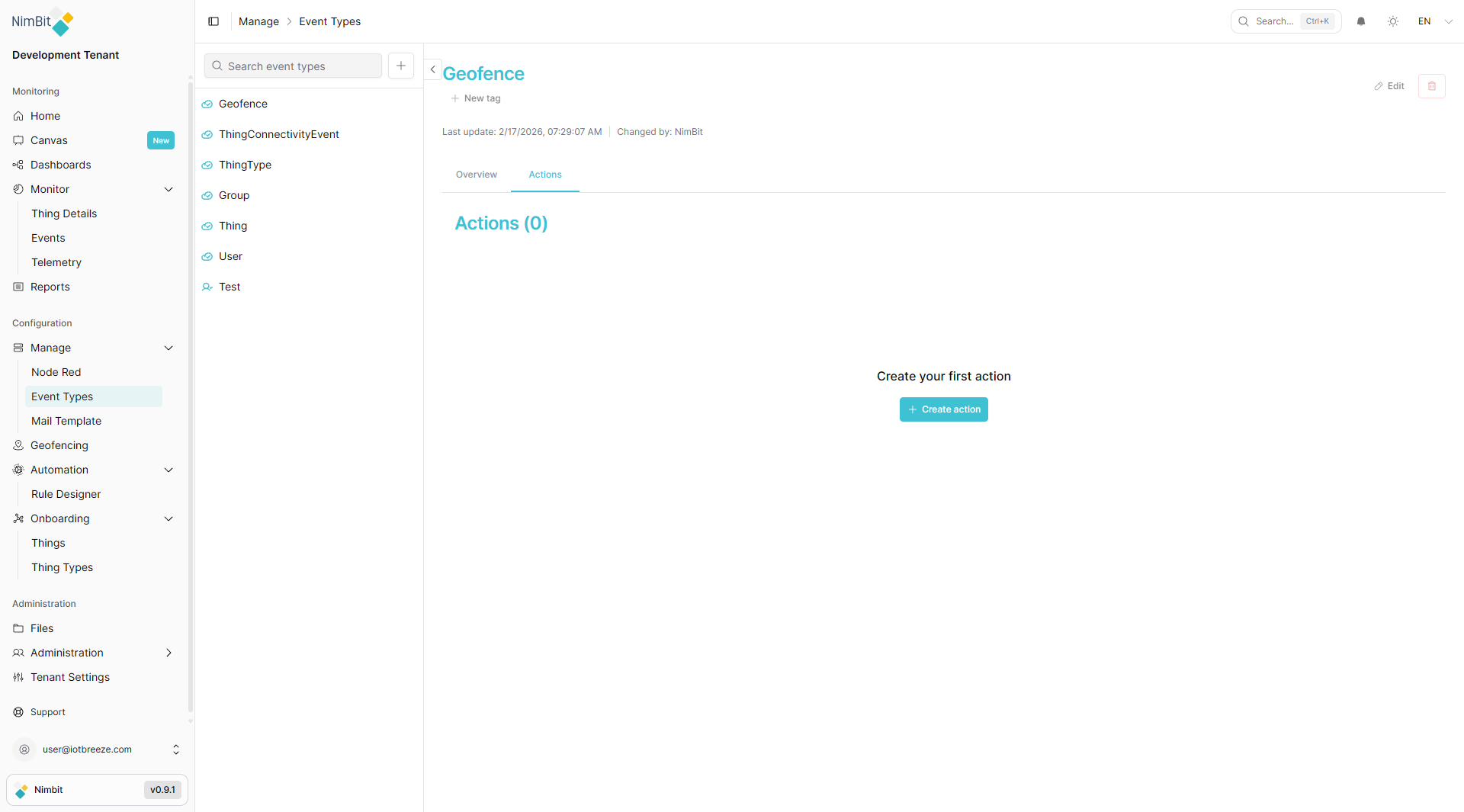
Actions are automated responses that the system executes whenever an event of this type occurs. You can configure multiple actions per event type to build comprehensive automation workflows.
Viewing Actions
The Actions tab shows:
- Actions (N) - A heading with the count of configured actions
- A list of all configured actions, or an empty state with a Create action button if none exist
Creating an Action
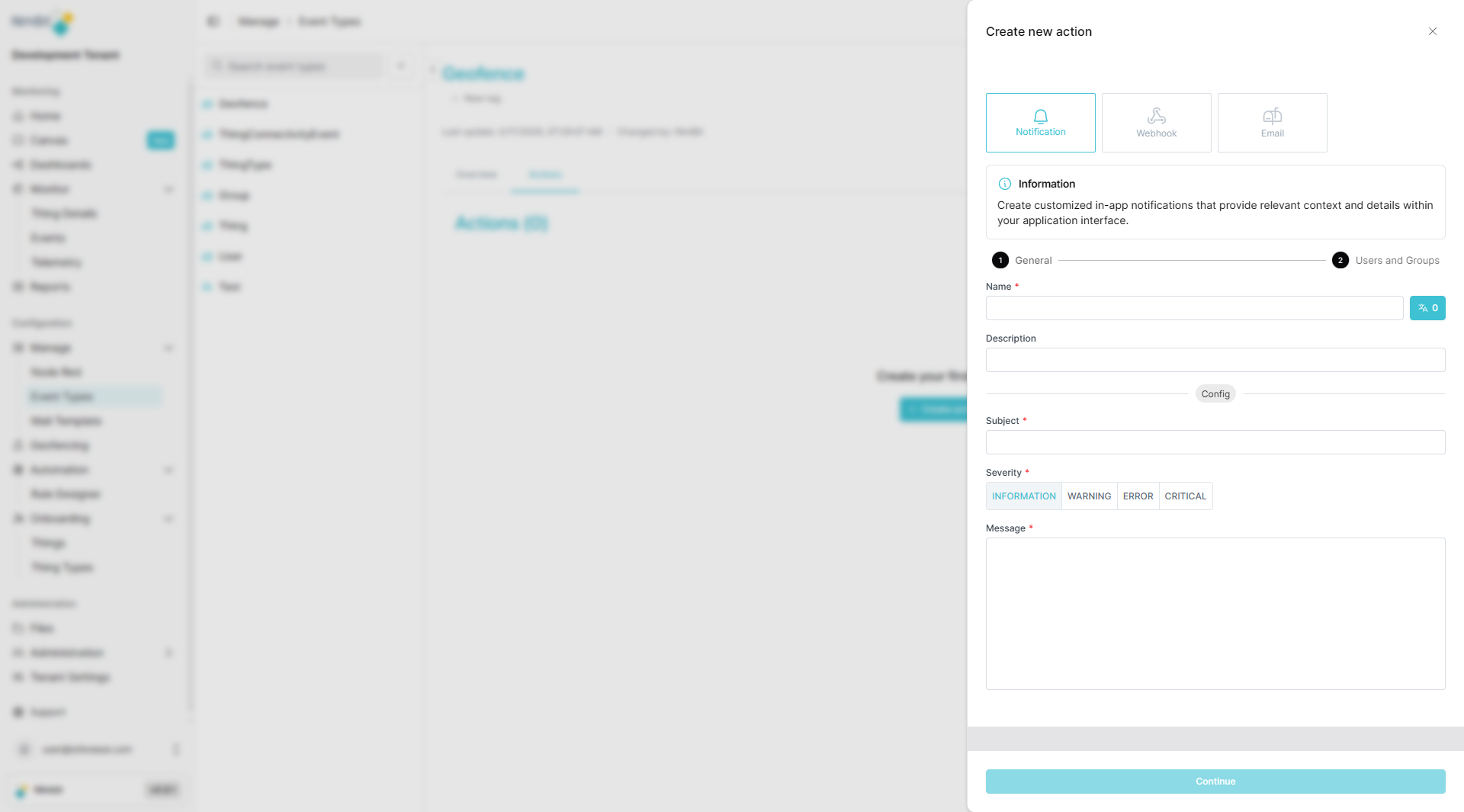
Click Create action to open the action creation dialog.
Action Types
Choose from three action types:
| Type | Description |
|---|---|
| Notification | Send in-app notifications with customizable severity, subject and message |
| Webhook | Send HTTP requests to external systems when events occur |
| Send email notifications to specified recipients |
Notification Action
Notification actions create in-app alerts that appear in the notification center.
Step 1: General
| Field | Required | Description |
|---|---|---|
| Name | ✅ Yes | Internal name for the action |
| Description | ❌ No | Description of what this action does |
| Subject | ✅ Yes | The notification subject line |
| Severity | ✅ Yes | How prominent the notification appears: Information, Warning, Error, or Critical |
| Message | ✅ Yes | The notification body text |
Step 2: Users and Groups
Select which users and/or groups should receive the notification when the event fires.
Webhook Action
Webhook actions send HTTP requests to external endpoints, enabling integration with third-party systems, external monitoring tools, or custom business logic.
Email Action
Email actions send email messages to specified recipients. Configure recipients, subject and body content. Email templates can be managed under Manage > Mail Template.
Saving Actions
Complete all required fields, click Continue to proceed through multi-step dialogs where applicable, then click Save. The action is immediately active and will trigger on the next event of this type.
Common Use Cases
Rule-Based Machine Monitoring
Create a custom event type with the Rule Evaluation display type (e.g., "Temperature Alert"). In the Rule Designer, define a rule that evaluates incoming temperature telemetry and triggers when values exceed a threshold. Attach a Notification action with Critical severity and an Email action so your team is alerted immediately when a machine overheats. When the rule fires, the event's Rule Evaluation tab shows exactly which sensor values triggered the alert.
Device Connectivity Monitoring
Attach a Notification action (Warning severity) and an Email action to the ThingConnectivityEvent type so your team is alerted immediately when a device goes offline.
Geofence Boundary Alerts
Configure the Geofence event type with a Webhook action to notify an external fleet management system when a tracked device enters or exits a defined geographic zone.
End-to-End Automation Pipeline
Combine custom event types with the Rules Engine for fully automated workflows:
- Create a custom event type with actions configured (e.g., webhook to your ticketing system)
- Build a rule in the Rule Designer that references this event type
- When machine data meets the rule's conditions, the DIP creates an event
- The event type's actions fire automatically - creating a support ticket, sending notifications and alerting on-call staff
Audit and Compliance
Use Email actions on User and Group event types to maintain an email-based audit trail of all access and permission changes.
External System Integration
Attach Webhook actions to Thing event types to synchronize resource changes with an external asset management or ERP system in real time.
Best Practices
- Name clearly - Use descriptive names for event types and actions so their purpose is immediately obvious
- Match severity to importance - Reserve Critical and Error for genuinely urgent situations; use Information for routine operations
- Combine action types - Use notifications for immediate in-app awareness, emails for offline team members and webhooks for system integrations
- Test actions - After creating an action, trigger a test event to verify that notifications arrive, webhooks fire correctly and emails are delivered
- Use the example payload - Consult the Overview tab's example payload when building webhook integrations to ensure your receiving system handles the correct data format
- Organize with tags - Apply search tags to event types so you can quickly filter and find them as your system grows
Related Pages
- Events - View and manage event instances (Monitor > Events)
- Rule Designer - Create automation rules that can generate events (Automation > Rule Designer)
- Mail Template - Configure email templates used by email actions (Manage > Mail Template)