Events
Events are records of significant occurrences within your IoT environment. They serve two main purposes: tracking internal system changes (resource creation, updates, deletions) and capturing external signals from connected machines and rule evaluations.
Why Events Matter
Events provide visibility into your system's activity:
- Audit trail - Maintain a complete history of all resource changes for compliance and accountability
- Operational monitoring - React to conditions detected by rules evaluating live machine data
- Troubleshooting - Trace the sequence of changes that led to an issue by following correlated events
- Automation triggers - Events can trigger automated actions such as notifications, webhooks and emails via their event type configuration
- System awareness - Monitor your environment's activity in real time to catch unexpected changes early
How Events Work
Events come from two sources:
System-Generated Events
The system automatically generates events whenever a resource operation occurs - creating a Thing, updating a Thing Type, deleting a Group, etc. These events use built-in event types (Thing, ThingType, Group, User) and provide an audit trail of all configuration changes.
Rule-Generated Events
Events can also be generated by the Rules Engine. When you define rules in the Rule Designer, those rules are deployed to the DIP (Data Ingestion Pipeline) software that processes telemetry data arriving from your machines. The DIP evaluates incoming data against your rule conditions in real time. When a rule's conditions are met and the rule is configured to create an event, the DIP sends the event to the backend (OCB), which creates the event record. These events appear in the Events list alongside system-generated events.
Rule-generated events use custom event types that you create yourself (see Event Types). They carry a Rule Evaluation display type, which provides a specialized detail view showing the rule expression, which conditions matched and the actual data values that triggered the rule.
External Events
Events can also be sent to the system from external sources via the API. This allows third-party systems to feed events into Nimbit for centralized monitoring and action triggering.
What Each Event Captures
- What happened - The event title describes the action (e.g., "Resource Machine1 updated" or "Test Rule Event")
- When it happened - A precise timestamp
- What was affected - The resource type (Thing, ThingType, Group, User) and a reference to the specific resource
- Related context - A correlation ID that links events belonging to the same operation and a payload with detailed data
Correlation IDs
When a single user action triggers multiple changes - for example, creating a Thing may also update its Thing Type - all resulting events share the same correlation ID. This allows you to reconstruct the full scope of an operation by viewing all correlated events together.
Event Severity
Events carry a severity level that indicates their importance:
- Information - Routine operations like resource creation or updates
- Warning - Conditions that may require attention
- Error - Failed operations or unexpected issues
- Critical - Severe problems requiring immediate action
Event Visibility and Groups
You can only see events whose event type is assigned to at least one of your groups. If an event type is not in any of your groups, its events will not appear in your Events list. Administrators should ensure that event types - especially custom ones for rules and external sources - are assigned to the correct groups so the right users have visibility. See Event Types for details.
Accessing Events
Navigate to Monitor > Events in the main sidebar, or go directly to /monitor/events.
Events List Page
The Events list page displays all system events in a searchable, sortable table.
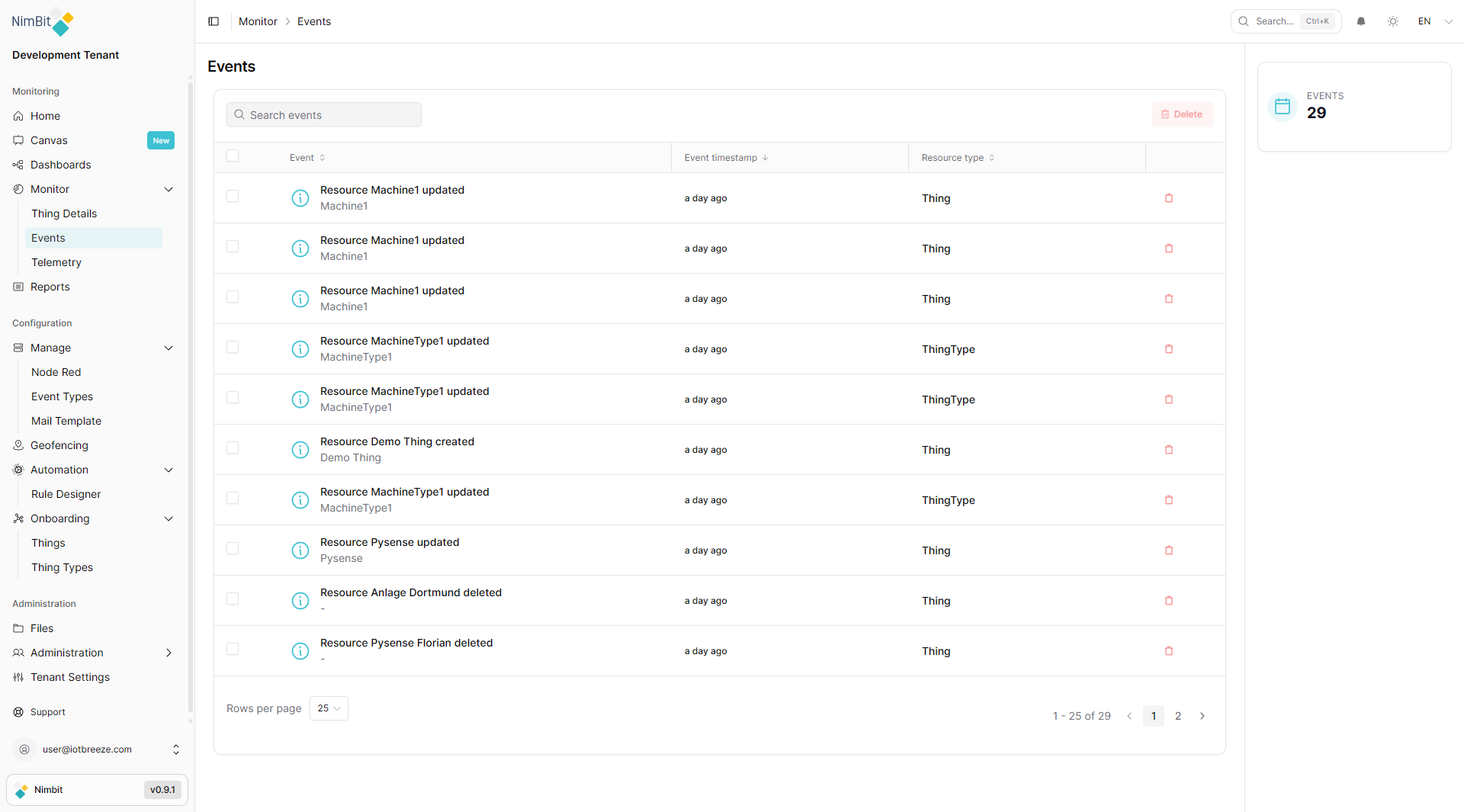
Table Columns
| Column | Sortable | Description |
|---|---|---|
| Event | ✅ Yes | Event title with severity icon and the affected resource name below |
| Event timestamp | ✅ Yes | When the event occurred, shown in relative time (e.g., "3 days ago") |
| Resource type | ✅ Yes | The type of affected resource: Thing, ThingType, Group, or User |
Click any column header to sort. Click again to reverse the sort order.
Searching Events
Use the search bar at the top to filter events by event title or resource name. The search is case-insensitive and filters results as you type.
Selecting and Deleting Events
- Click the checkbox on individual rows to select events
- Use the header checkbox to select all visible events
- Once events are selected, the Delete button in the toolbar becomes enabled
Event deletion is permanent and cannot be undone. Deleted events are removed from the audit trail.
Pagination
The table footer shows the current page range and total event count (e.g., "1 - 25 of 29"). Use the rows-per-page dropdown to change how many events are shown per page and the navigation buttons to move between pages.
Event Count Badge
A badge next to the page heading displays the total number of events in the system.
Event Detail View
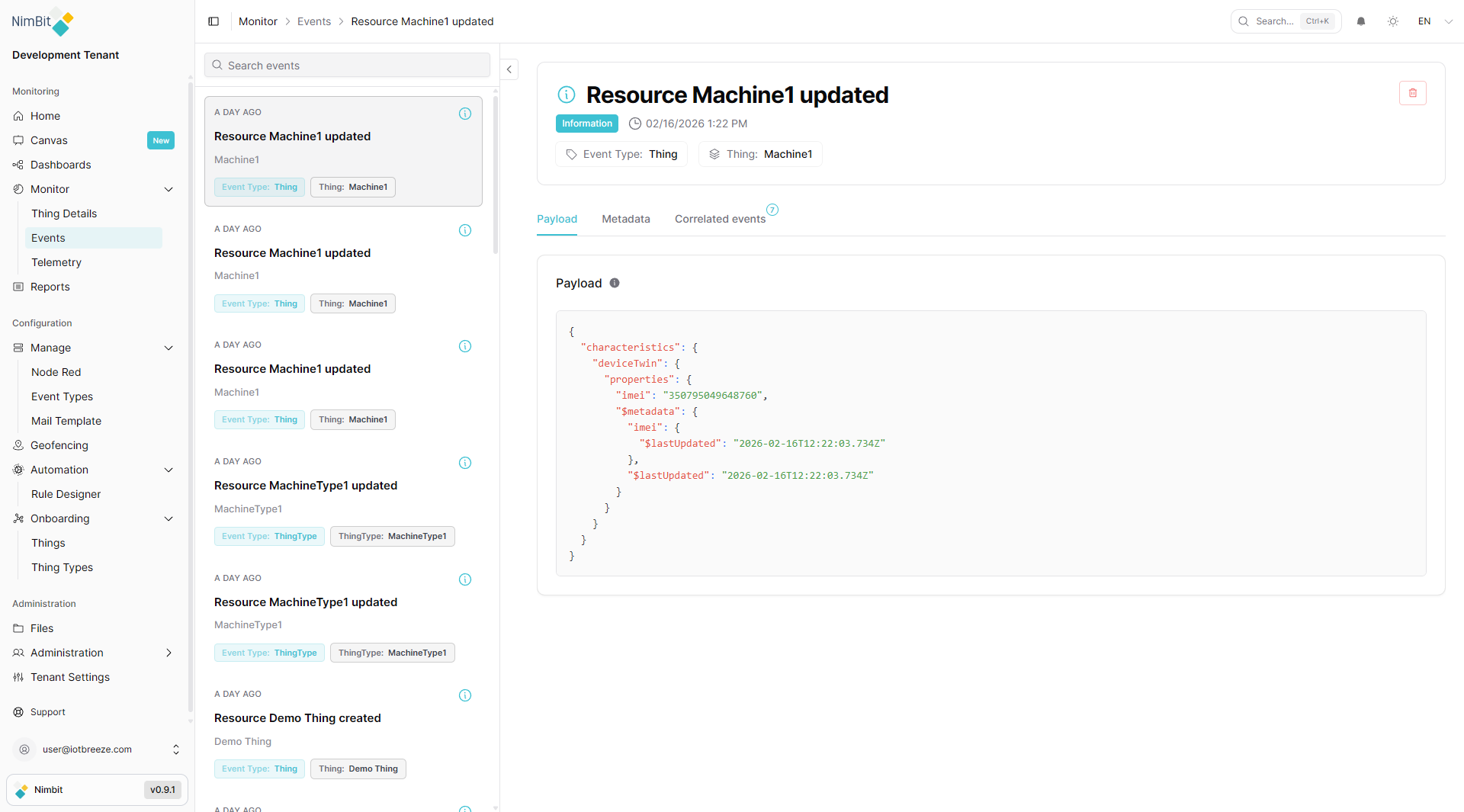
Click any event row to open the detail view. The page transitions to a dual-panel layout:
- Left panel - A scrollable list of event cards for browsing between events
- Right panel - Detailed information about the selected event
The detail view is also accessible directly via /monitor/events/{eventId}.
Left Panel: Event Card List
Each event card shows:
- Timestamp badge - When the event occurred
- Severity icon - Color-coded indicator (e.g., blue for Information)
- Event title - Descriptive name of the event
- Resource name - Name of the affected resource
- Event Type tag - The event type category (e.g., "Thing", "ThingType")
- Resource tag - A link label showing the resource type and name (e.g., "Thing: Machine1")
Click any card to switch the right panel to that event's details. Use the search bar at the top of the left panel to filter the event list without losing the detail view.
Right Panel: Event Header
The detail header displays:
- Event title - As the main heading
- Severity badge - Color-coded label (e.g., "Information")
- Timestamp - Exact date and time
- Event Type link - Clickable link that navigates to the event type definition in Manage > Event Types
- Resource link - Clickable link that navigates to the affected resource (e.g., the Thing's detail page)
A collapse/expand button allows you to toggle the left event list panel.
Breadcrumb Navigation
The breadcrumb shows: Monitor > Events > [Event Title]. Click Events to return to the events list.
Tabs
The tabs shown depend on the event's display type:
| Tab | Shown For | Description |
|---|---|---|
| Rule Evaluation | Rule Evaluation events only | The rule expression, evaluation status and condition analysis |
| Payload | All events | The JSON data payload containing event-specific details |
| Metadata | All events | Technical identifiers and system information for the event |
| Correlated events | All events | All events sharing the same correlation ID, with a count shown in the tab label |
For rule-generated events, the Rule Evaluation tab is shown first. For standard system events, the Payload tab is shown first.
Rule Evaluation Tab
The Rule Evaluation tab is displayed for events generated by the Rules Engine. It provides a structured, readable breakdown of why the rule triggered, without requiring you to parse raw JSON.
Rule Expression
Shows the logical condition that was evaluated, e.g. payload.sine > 0.
Evaluation Status
Displays whether the rule's conditions were met:
- Overall Status - Whether all conditions matched (e.g., "All Conditions Match")
- Conditions Met - A count showing how many conditions matched out of the total (e.g., "1 / 1")
Condition Analysis
A detailed breakdown of each condition in the rule, showing:
- Measure name - The telemetry field that was evaluated (e.g., "sine")
- Match status - Whether this specific condition matched
- VALUE - The actual data value received from the machine (e.g., "76.82")
- CONDITION - The operator and threshold defined in the rule (e.g., "> 0")
This makes it straightforward to understand exactly what data values triggered the rule and verify that rules are behaving as expected.
Payload Tab
The Payload tab displays the raw JSON data associated with the event. The payload content varies depending on the event type and the operation that triggered the event.
For example, a Thing update event might include the updated properties and their metadata:
{
  "characteristics": {
    "deviceTwin": {
      "properties": {
        "imei": "350795049648760",
        "$metadata": {
          "imei": {
            "$lastUpdated": "2026-02-16T12:22:03.734Z"
          },
          "$lastUpdated": "2026-02-16T12:22:03.734Z"
        }
      }
    }
  }
}
The payload viewer provides:
- Syntax highlighting for readability
- Copy button to copy the entire payload to the clipboard
- Scrollable content for large payloads
Metadata Tab
The Metadata tab shows the technical identifiers associated with the event.
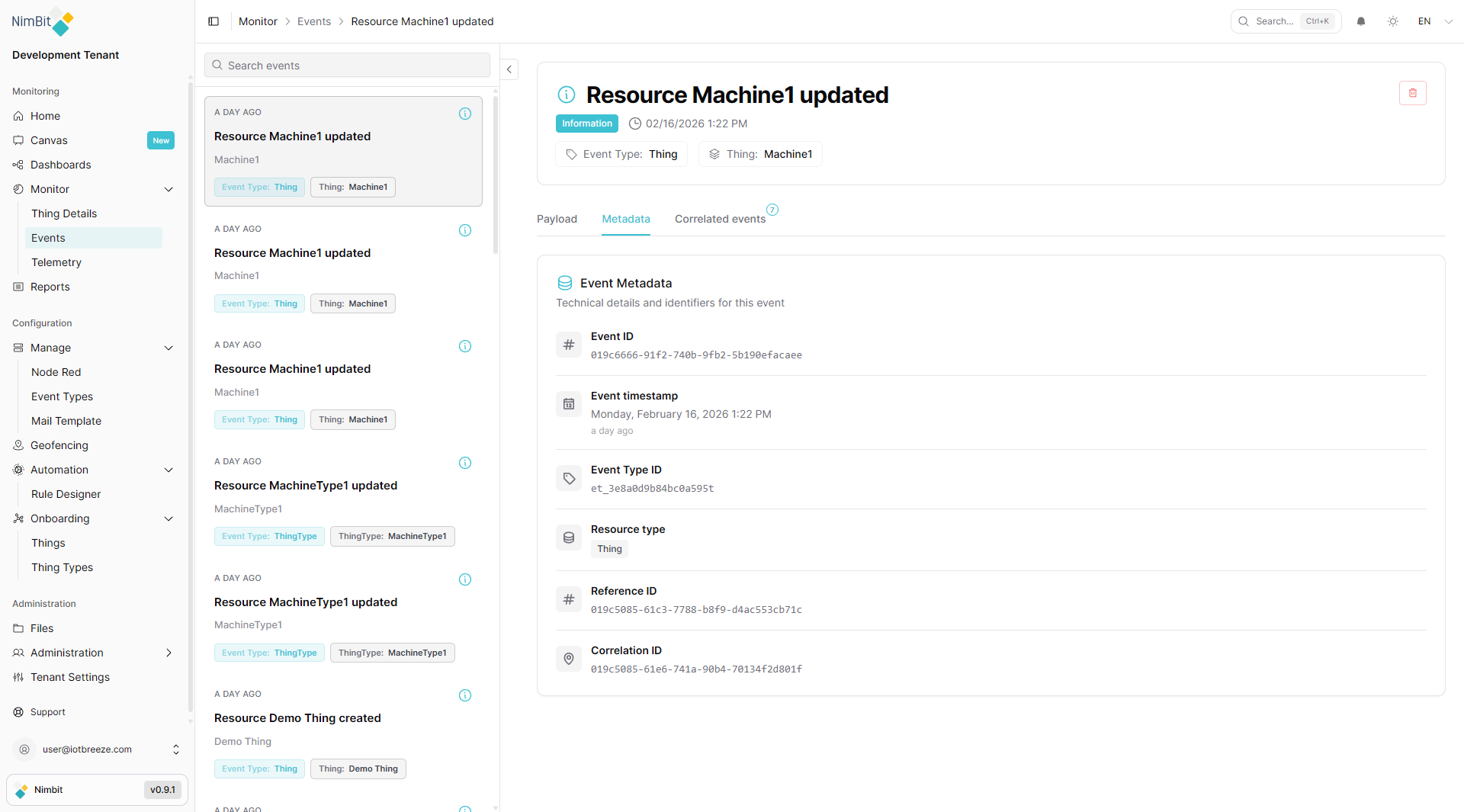
| Field | Description |
|---|---|
| Event ID | Unique identifier for this event |
| Event timestamp | Exact date and time, with relative time shown below |
| Event Type ID | Identifier of the event type definition that categorizes this event |
| Resource type | The category of the affected resource (Thing, ThingType, Group, User) |
| Reference ID | The unique identifier of the specific resource that generated this event |
| Correlation ID | The ID linking this event to other events from the same operation |
Use metadata for:
- Event correlation - Find all events from the same operation using the correlation ID
- Resource lookup - Identify the exact resource via the reference ID
- System integration - Reference event IDs when integrating with external systems
- Debugging - Trace event flows through the system
Correlated Events Tab
The Correlated Events tab lists all events that share the same correlation ID as the currently viewed event. The tab label includes a count (e.g., "Correlated events 7").
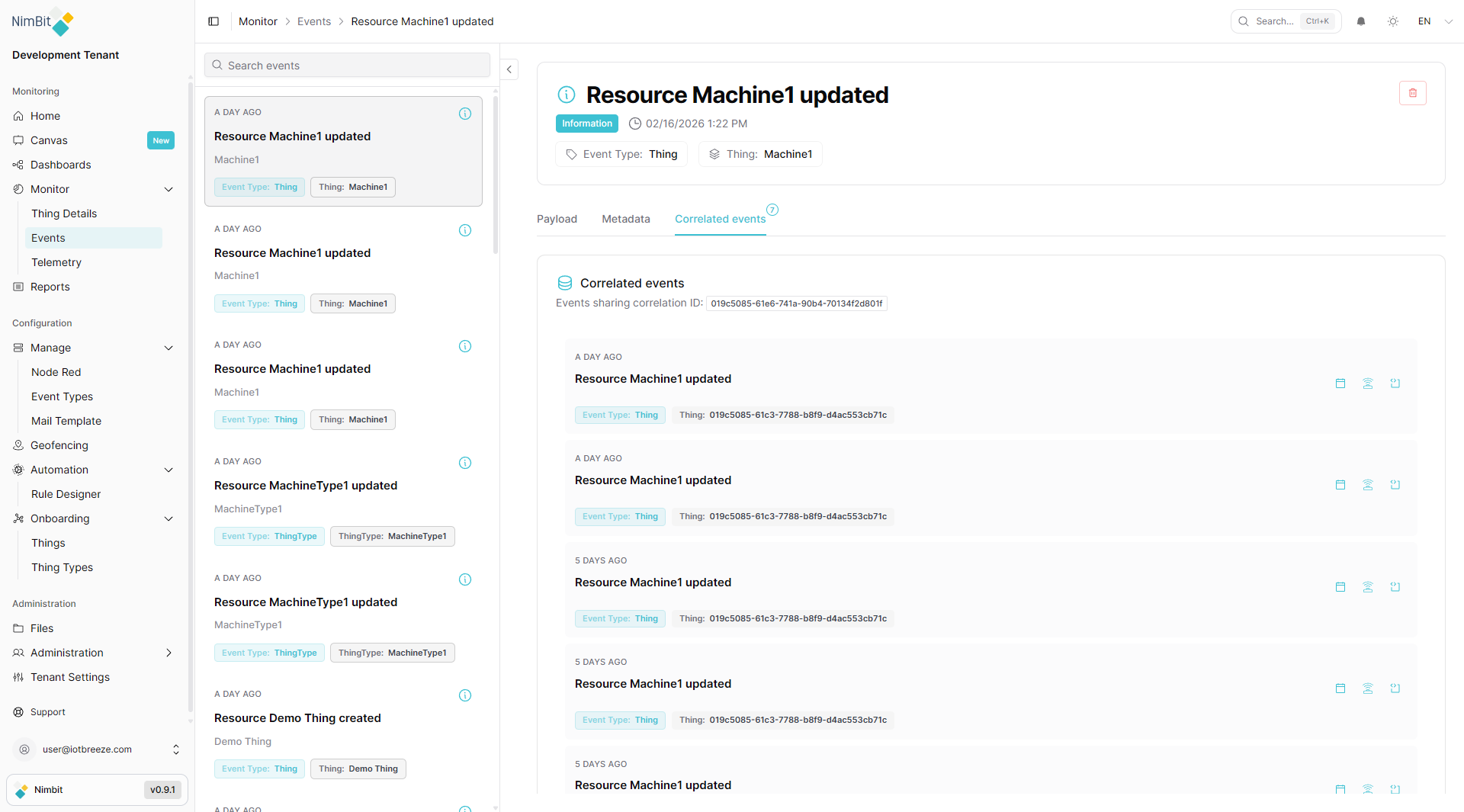
At the top, the shared correlation ID is displayed.
Each correlated event card shows:
- Timestamp - When the event occurred
- Event title - Clickable link to navigate to that event's detail view
- Event Type and Resource tags - Showing the event type and affected resource
- Action buttons:
- Navigate to event - Open this event in the detail view
- Go to resource - Navigate directly to the affected resource's page (e.g., Thing Details)
- Payload - View the event's payload in a popup dialog
Understanding Correlated Events
A single user action often triggers multiple system events. For example, creating a new Thing might produce:
- A "Resource created" event for the Thing itself
- One or more "Resource updated" events as properties are configured
- Additional update events for state synchronization
All of these events share the same correlation ID, letting you trace the complete lifecycle of the operation.
Event Sources and Resource Types
System Resource Events
These events are generated automatically when resources are modified:
| Resource Type | Events Generated |
|---|---|
| Thing | Created, updated, or deleted IoT devices |
| ThingType | Created, updated, or deleted thing type definitions |
| Group | Created, updated, or deleted groups |
| User | Created, updated, or deleted user accounts |
Rule-Generated Events
These events are created when rules in the DIP evaluate incoming machine data and a condition is met. They reference the Thing that produced the data and use custom event types you define. Their payload includes the full rule evaluation result - which conditions matched, the actual values and the rule expression.
External Events
Events sent via the API from external systems. These use custom event types and can reference any resource type.
Best Practices
- Monitor regularly - Review recent events to detect unexpected changes or patterns
- Use correlation IDs - When investigating an issue, follow the correlation ID to see the full chain of related events
- Leverage search - Use the search bar to quickly find events related to a specific resource by name
- Clean up periodically - Delete obsolete events to keep the list manageable
- Check payloads - Examine event payloads to understand exactly what changed in a resource
- Configure event types - Set up event type definitions with appropriate actions (notifications, webhooks, emails) for automated responses to events
Related Pages
- Event Types - Define event type categories and configure automated actions
- Thing Details - View IoT device details (Monitor > Thing Details)
- Rule Designer - Create automation rules triggered by events (Automation > Rule Designer)